1
area. The mission of this scenario is to cross the open ground and take out the defending
strong points in the buildings with the objective hexes. Inflict as many casualties as possible,
but it is also always a goal to limit your own casualties.
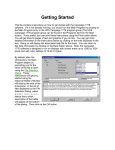
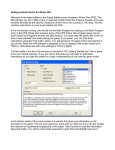
Once you hit the enter key or click on "OK", you’ll see
another menu of choices. This is the A/I Selection
Dialog. In this menu you’ll pick which side you will be
controlling. So choose "Manual" for the American A/I
which means you will be controlling the American
side. Next, click either on "Automatic" or "Automatic
with FOW" for the Enemy side. Now the computer will
control the Iraqi troops. "FOW" means fog of war. If
you choose it, you won’t be able to see any enemy
units until they come within the line of sight (LOS) of
one or more of your units. Playing with FOW turned
on makes the battle much more realistic and exciting as surprise and LOS are key elements
of small unit actions. If you are, however, a first time player, it will be easier to play in
"Automatic" without the Fog of War.
Notice the word "Rules" at the bottom of the dialog box. Clicking on it will allow you to turn on
or off the optional rules in the game. We’ll leave that alone for this time, but when starting
future battles you can go in and select the optional rules that you desire. For more details on
each rule click the “Help” button on that screen. After you have picked the method of play in
the A/I Selection Dialog Menu, click on "OK".
Since you are playing the Americans the Enemy side will
go second. That may not always be the case, as
sometimes the A/I player will go first. A box will appear
designating which army has the turn; this box will appear
at the beginning of each turn through out the game. You
can either left-click on it to make it go away, and then
repeat that each time, or you can right-click on it and it will display briefly then automatically
go away each turn for the remainder of your session.
Notice a small dialog box appeared once your turn started
stating there is a Smoke limit of 35 for this scenario.
Remember this as we’ll come back to it in a couple of
minutes. For now just click the OK button.
Now you see the battlefield and your troops. If you wish to
scroll around the map with ease, click on the menu list at
the top called "Settings" Then click on “Auto Scroll” unless it
already has a check mark. Now you can simply run your mouse pointer to any corner of the
map and the screen will move until the edge of the map is reached. For this scenario it isn’t a
big deal as the map is so small, but in others it will be a big help.
Your forces will be in view in the upper-left segment of the map, coming in across the field.
This map is not that large, so depending on your screen resolution you shouldn’t have too
much scrolling to do. You will see three objective hexes along the center of the paved area,
2