1
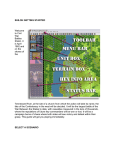
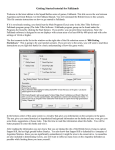
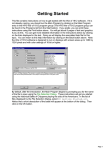
Getting Started This file contains instructions on how to get started with the Campaign 1776 software. If it is not already running, you should run the Main Program by clicking on the Main Program entry in the HPS Campaign 1776 program group (The HPS Campaign 1776 program group can be found in the Programs list from the Start button). If you prefer, you can print these instructions using the Print button above. You will get about 8 pages of text and graphics if you do this. You can get more detailed information in the instructions below by clicking on the links displayed in the text. Doing so will display the associated help file for this topic. You can return to this help information by clicking on the Back button above. Note: the Campaign 1776 software is designed to run on displays with screen areas up to 1280 by 1024 pixels and with color settings of 16-bit or higher. By default, after the introduction, the Main Program begins by prompting you for the name of the file to open using the File Selection Dialog. These instructions will get you started using the historical Battle of Bunker Hill playing the side of the Americans. In the list of files displayed by the File Selection Dialog, select Bunker Hill_a.scn. Notice that a short description of the battle will appear at the bottom of the dialog. Then click on the OK button. Next, the A/I Selection Dialog will appear. Since we are going to play as the Americans, select Automatic in the British A/I group on the right hand side of the dialog. This will cause the computer to play as the British side. If we want to give the computer an advantage, we could move the Advantage slider towards British side, but leave it in the middle for now. Later on, you can also use this dialog to experiment with Optional Rules by clicking on the Rules button. For now, click on the OK button. The Bunker Hill battlefield will be drawn on the screen and in the middle of the screen, the Phase Dialog will appear. Important: click anywhere in the dialog picture to cause the program to begin the A/I portion of the battle. If you click on the Close button, the program will just sit there and you will need to click on the A/I button to get it to do something. When the A/I is doing things, the A/I Action Dialog will appear in the lower-right hand corner of the screen. Click on the Step button to get the A/I to go on to the next activity. After a while, when you are comfortable with what the A/I is doing, click on the Run button so that it doesn’t stop each time. When the A/I completes, the Phase Dialog will reappear. Now it is your turn! Click anywhere in the Phase Dialog picture area. At this point, you may want to review your forces in this battle. You can click on any location on the map and at the left of the screen, it will tell you what leaders and units are located there. Also notice that the map is scrollable by using the scroll bars that appear at the right and bottom of the map area. Find the location displayed in the picture at right and click on it. Notice that a red hexagon will appear at the location and that at the left of the screen, you will see that the location is defended by Col. Prescott and 3 companies of Massachusetts infantry. Since we are in the Defensive Fire Phase, we want to find some units to do some shooting at the enemy. There are several issues involved in valid firing involving range, weapon, and line-of-sight. However, it is always easy to find units capable of action in the current phase by clicking on the Next Unit button. Locate the button displayed at right in the toolbar area and click on it. At the left of the screen, you should see that the computer has found two cannons that can fire in this phase. If you don’t see this, you can continue clicking on the Next Unit button until the program cycles back around to these units. Click on the top unit picture and notice that it becomes highlighted. You have just selected that unit. You can experiment with selecting the units at this point and notice that you can toggle selection on and off for either or both units. Leave the top unit selected and go on to the next step. Now the question is: what targets does this unit have? In particular, the targets must be visible from the location of the cannon. So at this point, find the Visible Hexes button on the toolbar and click it. You’ll notice that the hexes that cannot be seen from the current location are shaded on the map. If you scroll the map to the right (using the scroll bar at the bottom of the map), you will see some British units that are unshaded. These are potential targets if they are also in range and the firing unit is facing them. To fire, click on the target location using the right mouse button. Note: clicking using the left mouse button always changes the current location. If you should change the current location, you will need to relocate your firing units and reselect them. If your target location has more than one target, the Target Dialog will be displayed so you can select which one you want to fire at. So at this point, right click on a target hex and do some firing! Each time you fire, you will get a report indicating the damage you did to the target. Remember that clicking on the Next Unit button will take you to the next valid firing unit. When you are done, you probably want to turn off the visible hex shading by reclicking on the Visible Hexes button in the toolbar. When you are through with your turn, you click on the Next Phase Button in the toolbar. Important: if you should click on the A/I Button at the end of your turn thinking that it will start the A/I running, you will actually cause the A/I to complete your own turn for you. So use the Next Phase Button to avoid this. The first time you advance the phase, the program will prompt you to save your battle. This allows you to come back at a later time and start where you left off. A default filename is displayed in this dialog, but you can change the filename if you want to have several battles going at one time. Click on the Save button to save the battle. Each time you see the Phase Dialog appear, click in the picture area of the dialog. There are two more phases under A/I control at this point in the turn: the Offensive Fire Phase and the Melee Phase. You will be fired upon by the A/I several times and then the program will advance to your Movement Phase. You should be watching for the Phase Dialog at right. Just for fun, let’s advance Stark’s force against the British. Find the location indicated at right, possibly by scrolling the map up some. If you click on the correct location, you should see Stark and up to 3 infantry companies displayed at the left of the screen. Note: in rare instances, it may occur that Stark and his force has routed from their assigned location due to the British fire. If you find that this has happened, you probably want to restart the program and then return to this point in the instructions. You can select an entire location by double-clicking. Do this so that all units are highlighted at the left of the screen. Now click using the right mouse button in the hex just in front of Stark and then the hex just in front of that. You’ll notice that the units move to the hex you have clicked on and that your movement is marked by arrows appearing on the map as you see in the picture on the right. Bring Stark’s group up until they are just in front of the British advancing along the shoreline. If you want, you can experiment with moving other units as well. When you are done, advance the phase using the Next Phase button. You will be fired upon by the British at this point, and then you will have a chance to fire. If you wish, you could select Stark’s force and fire on the British before it. When you are done firing, advance the phase again. At this point, you should see the Phase Dialog appear indicating that it is the American Melee Phase. You will also see the current phase displayed at the bottom of the screen in a status bar during the battle if you lose track. Now we want to see if we can dislodge the British from their location by performing a melee. To initiate the melee, right click on the British location. You should see a three-arrow symbol appear as in the picture on the right. Now select Stark and any units with him that do not say DISRUPTED. The picture on the right shows what you will see if a unit is Disrupted. If you select any Disrupted units at this point, you will be an error message when you try the next step so make sure than any such units are not highlighted in the Unit List at the left of the screen. Now go to the Melee menu at the top of the screen and select the Add to Melee menu item. If you do this correctly, you will get a message in the middle of the screen telling you the relative strengths of the forces involved in the melee. You would use this information to decide whether to follow through with the melee or not. To resolve the melee, go back to the Melee menu and select the Resolve Melee menu item. You will see a dialog in the middle of the screen indicating the outcome of the melee. Whew! That’s a lot to cover. But the good news is that you have now done 90% of what you need to know to fight a complete battle. Bringing reinforcements onto the map is the only major issue not addressed in these instructions. At this point, you should just continue with what you know and begin exploring other options. Notice you can change your view perspective by using the Zoom-In and Zoom-Out buttons in the picture on the right. To get more help, you should investigate the on-line help files. In each program, these are accessible using the Help button in the toolbar, by selecting General Help from the Help menu, or by pressing the F1 key. Also remember that you can generate printed copies of the documentation by displaying these from the Campaign 1776 program group and printing them on your printer. The best results here are obtained by printing using a current version of Microsoft Word instead of WordPad which has a problem with the indexes and table of contents. Now on with the battle! Your goal in this battle is to defend your Objectives. You can see where those are on the map by clicking on the Objectives button in the toolbar or by selecting the Objectives menu item in the Display menu. Each of your Objectives will be indicated by an American flag on the map. Furthermore, when you click on an Objective, the value of that Objective will be displayed at the bottom of the screen in the brown box. In this battle, Prescott is defending one Objective on Breed’s Hill and there is a second Objective back on Bunker Hill. Try to cause as many British casualties as you can while avoiding casualties of your own. At the end of the battle, the Victory Dialog will be displayed indicating the outcome of the battle. Feel free to save this battle and come back to it later if you want to do more exploring at this point or if you would really prefer to play the British side. Whatever file you save the battle in will be displayed when you select the Old button in the File Selection Dialog. To get more information, see the following help files: User Manual Main Program Help File Scenario Editor Help File Campaign Editor Help File