1
5.9 Zoom Window
143
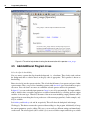
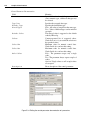
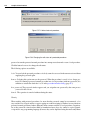
If the currently displayed document is the reference page of a HALCON operator, select this operator
in the operator window.
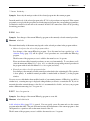
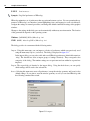
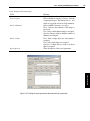
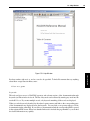
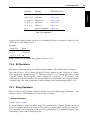
Syntax The online pages of the HALCON Reference Manual are available for the language interfaces
HDevelop, C++, C, .NET, and COM. The displayed variant can be selected through this list box.
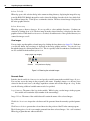
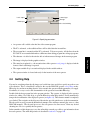
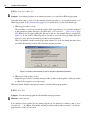
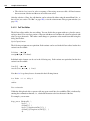
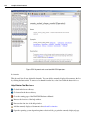
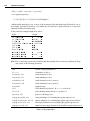
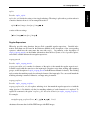
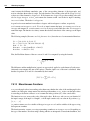
Find Enter a word or substring to find it in the currently displayed document. The first match is highlighted as you type. If no match is found, the text field blinks shortly. You can use the cursor keys
(down and up) to highlight the next match or the previous match, respectively. Alternatively, you
can use the following two buttons.
Next Highlight the next match.
Prev Highlight the previous match.
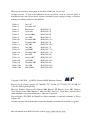
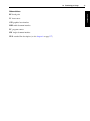
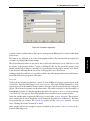
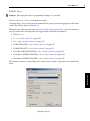
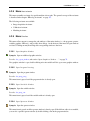
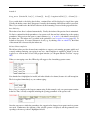
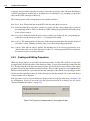
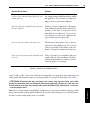
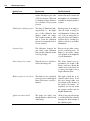
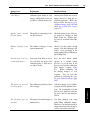
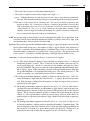
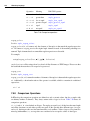
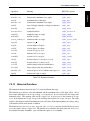
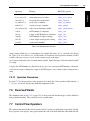
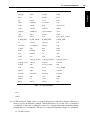
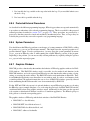
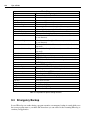
Special Keyboard Shortcuts in the Help Window
<Alt>+<Return>
<Ctrl>+<p>
<Ctrl>+<+>
<Ctrl>+<->
<Ctrl>+<d>
<Tab>
<Shift>+<Tab>
<Enter>
5.9
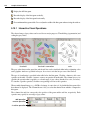
go back in the browse history
go forward in the browse history
go to starting the page of the HALCON Reference Manual
enter operator into operator window
print current page
increase font size
decrease font size
add current page to the bookmarks
highlight next link
highlight previous link
jump to highlighted link
Zoom Window
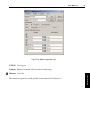
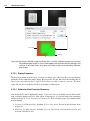
Synopsis: Zoom window for image details and pixel inspection.
See also: Menu Visualization . Zoom Window
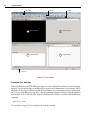
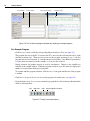
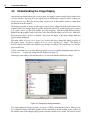
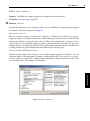
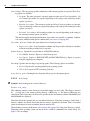
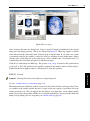
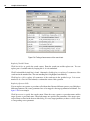
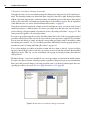
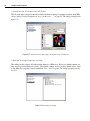
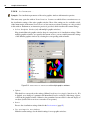
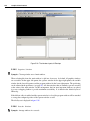
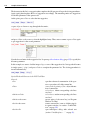
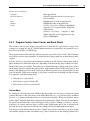
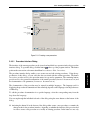
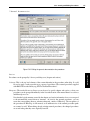
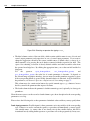
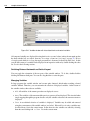
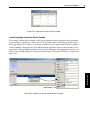
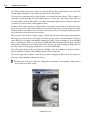
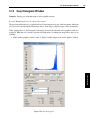
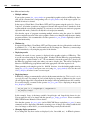
The zoom window enables the interactive inspection of image details. You can open up any number
of zoom windows with different zoom levels (see Menu Visualization . New Zoom Window). The
window also displays the gray values of each image channel at the mouse cursor position. Apart from
this, the pixel type, the number of channels, and the current position of the mouse cursor are displayed.
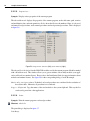
The percental scale can be selected from the combo box. It is related to the original size of the image.
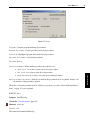
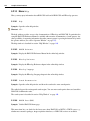
There are multiple methods to navigate the zoom window:
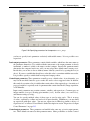
Check Follow Mouse and move the mouse pointer over the image to select the zoomed area. Click
once to keep the currently displayed area in the zoom window, when the mouse cursor moves out of the
image window. Or, uncheck Follow Mouse and click (or drag) inside the image to select the zoomed
GUI Reference
<Alt>+<Left>
<Alt>+<Right>
<Alt>+<Home>