1
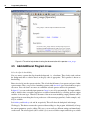
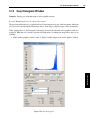
5.10 Gray Histogram Window
147
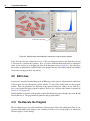
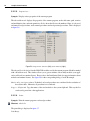
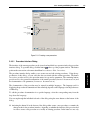
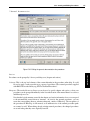
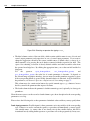
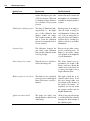
• Smoothing: Display the histogram smoothed. The smoothing factor can be specified with the
slider or entered into the spinner box.
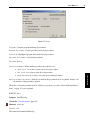
Horizontal/Vertical: The visible part of the histogram can be specified parametrically by entering
the minimum and maximum values into the spinner boxes. These values are adapted when the visible
area is set with the buttons next to the histogram.
Whenever new image data is evaluated in the gray histogram window, the adaptation of these values
depends on the selected adaptation mode, which can be set independently for horizontal and vertical
ranges:
• adaptive
In this mode, the upper and lower boundary of the displayed gray values will always be adapted
when a new image is displayed. The maximum and minimum value for the threshold bars (green
and red) are also fixed to the maximum gray value of the type of image currently displayed.
Note that if you are using 8-bit and 16-bit images in a mixed mode, the histogram will constantly
be reset. Thus, it is not possible to display a 16-bit image, set thresholds, then display an 8-bit
image and keep the threshold values of the 16-bit image.
• increasing
In this mode, only the upper boundary of the displayed gray values will be adapted and it will only
increase, but never decrease. This for instance is useful when first inspecting 8-bit images, but
then switching to 16-bit images. In this situation, the histogram will simply display the 16-bit gray
value range after displaying the first 16-bit image.
In this mode, the minimum and maximum value of the threshold bars are not limited to the currently
displayed image type. The reason is simple: This mode allows to inspect images of a different
data type with the same threshold values. If the values were always limited, the histogram would
"forget" the values like in the adaptive mode.
In this mode, the boundaries are not adapted automatically (but can be changed manually). This
mode is also suitable for scenarios with images of mixed data types.
Like in the mode increasing, the minimum and maximum value of the threshold bars are not
limited to the currently displayed image type.
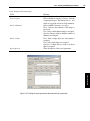
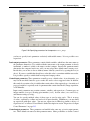
Gray Histogram Tool Bar
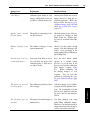
Display linear histogram (the default).
Display logarithmic histogram.
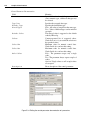
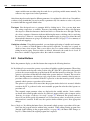
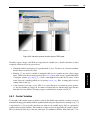
Initially, the histogram is displayed at full vertical range, i.e., up to the peak value. The displayed part
can be manipulated with the following buttons:
Zoom histogram display to a selected area. Click this button and drag an area inside the histogram to
view that area.
Spread the histogram horizontally so that only the area between the lines is displayed.
GUI Reference
• fixed