1
Android Tracker Capture App
Viewing Enrollments
3.3. Viewing Enrollments
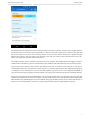
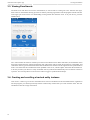
The main screen will show an overview of enrollments, as well as links to creating new ones. After the first login,
there will be no enrollments showing up in the list. Start by selecting organisation unit and program from the selectors
at the upper part of the screen. For downloading existing tracker data from the server on to your device, press the
middle button.
The + button below the selectors will take you to the new enrollment screen. Below this button, all enrollments which
have been registered for the selected organisation unit and program will be listed. Each column is configurable, and
could show various types of information from each enrollment. The column to the far right shows the synchronization
status. Sent means that the enrollment has been uploaded to the server, whereas Offline means that the enrollment is
so far only stored at your device. Locally stored data will be synchronized automatically once an Internet connection
is present. You can swipe down on the screen in order to trigger a synchronization attempt.
3.4. Creating and enrolling a tracked entity instance
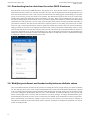
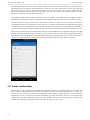
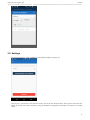
Click on the + button to go to the new enrollment form. The new enrollment will be associated with the organisation
unit and program you selected previously and the tracked entity instance that you create with this form. The new
enrollment screen has a range of functions:
10