1
8
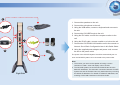
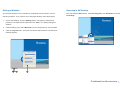
Playback Controls
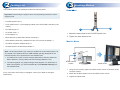
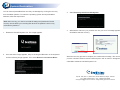
Back Up Video Files
You can back up video files of the desired time to CD / DVD.
Playback Scroll
Audio on/off
1.
Insert the CD / DVD media into the drive.
2.
Click
on the main screen, and select Video/Audio Log.
3.
Click
on the functional panel.
4.
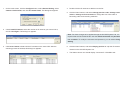
Select CD Using OS-Burning to burn files with the inbuilt software of
Windows XP.
Rewind to
Beginning
Rewind
Play
Forward to
End
Zoom in/
out
5.
Click Add time frame.
6.
Enter the Start Time and End Time for backup.
7.
Select the desired camera(s) for backup. The number of video and audio files of
each camera is indicated respectively, e.g. “Camera 3 39+0” means the camera
3 has 39 video files and 0 audio file.
Frame-by-Frame
Reverse
Stop
A to B
Playback
Frame-by-Frame
Forward
Speed up/
down
Frame-by-Frame/
Real Time/
Just Key Frame
8.
Select the types of events for backup, e.g. video, audio or both together.
9.
Click OK to add the time frame. You can repeat steps 5-8 to create up to 10 time
frames.
10. Click OK to start burning.
For details, refer to Backing Up Video Files Using ViewLog, Chapter 5, DVR User's
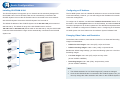
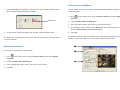
Using the Zoom
. Zoom in:
Click the Zoom-in button, and then click on the area you want to
magnify. Each click will increase the zoom level.
. Zoom out: Click the Zoom-out button, and then click on the image to
zoom out. Each click will decrease the zoom level.
Manual on Surveillance System Software DVD.
Note:
You have to connect a USB DVD RW device to the GV-NVR System Lite
for video files backup.