1
6
7
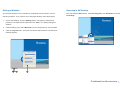
Set Up a Recording Schedule
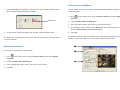
Play Back Video
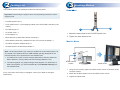
You can program recording to turn on and off at a specific time each day.
You can play back video recorded during a particular date and time.
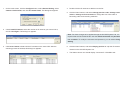
1. Click
1. Click
on the main screen, and select Schedule Edit.
2. Select or enter the Start and End time of the schedule.
on the main screen, and select Video/Audio Log.
2. Select the camera you wish to view.
3. Select day(s).
3. Select a date folder from the date tree.
4. Select Rec, and use the drop-down list to select Round-the-Clock or
Motion Detect for recording mode.
4. Select a time from the Video Events list.
5. Select camera(s).
5. Click
to begin playback.
6. Click Add Schedule.
For details, refer to Playing Back on ViewLog, Chapter 4, DVR User's Manual on
Surveillance System Software DVD.
7. Click OK.
For details, refer to Recording Schedule, Chapter 1, DVR User's Manual on
Surveillance System Software DVD.
4
2
3
2
5
4
3
6
7
5