1
XR3000
Set Up Guide 8.
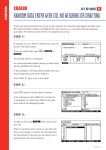
Repeatable data entry with EID, no weighing or drafting
These instructions describe how to set up the indicator for recording data against large numbers
of animals (like sheep) that all have the same data. e.g. sex or source.
STEP 1:
If required, set up a field for data entry in the
Life Data or File Data screens.
To set up a data field, press
.
,
or
Set up field options, as required.
For more information about setting up data
fields, see the XR3000 User Manual.
In this example, a life data field has been set
up to record the animal’s sex.
Note: Repeat is ticked for Sex.
Custom type is an option here, see user manual or Indicator Help for set up.
STEP 2:
Press
and set up the screen as shown:
Note: Sex is ticked so it will appear as a data
entry field on the right hand side of the
Weighing screen.
STEP 3:
To select a file, press
new file.
then scroll to the
Note: It is good practice to start a new file each
time a new session is started. You should name
the file relevant to the job you are doing. This is
good practice for record keeping.
Page 1 of 2
XR3000
Set Up Guide 8.
Repeatable data entry with EID, no weighing or drafting
STEP 4:
Optimise the system for the task being performed.
Press
,
.
As animals are not being weighed, set Weight
Recording to Off in order to increase the speed of
data entry.
Tick ID Entry Creates File Rec to allow the XR3000
to record data without weighing.
STEP 5:
Set up the EID device.
Ensure the EID reader is plugged into CON 2.
Press
,
,
.
Set up the screen as shown:
STEP 6:
The main screen should be displayed as shown:
Note: When the data is entered for sex the field
will remain and repeat for each animal. If this
is changed during weighing it will continue to
repeat with the new value.
Need more help?
For further information regarding your stock management system
contact Tru-Test on 1800 641 324 (AU) or 0800 878 837 (NZ)
02 0510
Page 2 of 2