1
To start a Host Mode connection session, ensure all power sources/switches are in the off position. This includes the USB‐
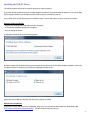
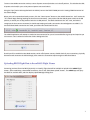
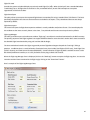
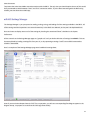
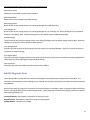
IO power switch and/or your av‐bay external power source and switch. Using the 5‐pin/4‐wire cable supplied with the USB‐IO, connect the RRC3 COMM port to the mating COMM connector on the USB‐IO dongle. When you’re all connected and ready to start, click the “Host Connect” button on the mDACS Button Bar. You’ll notice the “TX” LED will begin flashing (sending the host connect command). Next, either slide the USB‐IO power switch to the ON position, or switch your av‐bay/external switch to its ON position. The RRC3 should emit the “Init” tone, and when it recognizes the host connect command, it should stop beeping and send a connection acknowledgement to mDACS. If a successful Host Mode connection was made, your Status Bar should look like this: The mDACS application will attempt to make the Host connection for up to 15 seconds before it gives up and requires you to intervene. Here’s what the Connection Failure Dialog looks like: Should you fail to establish a Host Mode session, switch off all power sources, double check all your connections, physically disconnect and reconnect the USB IO dongle, then restart the connection sequence again as described above. Uploading RRC3 Flight Data to the mDACS Flight Viewer Presuming you have flown the RRC3 (physically or virtually), flight data will be available to upload to the mDACS Flight Viewer. After establishing a Host Mode connection, click on the “RRC3 Data Upload” button. The mDACS app will query the RRC3 for available data, and then display Upload Manager Dialog form. 7