1
INTREPID User Manual
Library | Help | Top
4
Flight Path Editor (T19)
2
| Back |
Specify the dataset(s) that you wish to display or edit. Use Load Line Dataset,
Load Point Dataset and/or Load Grid Dataset from the File menu as required.
(See Specifying input and output files for detailed instructions.)
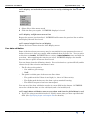
If you are displaying a grid dataset INTREPID will first display it using grey
scale.
If you are displaying a point dataset INTREPID will prompt you to specify Z fields
for the colour and size of the points displayed.
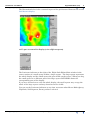
INTREPID displays the dataset(s) in the Flight Path Editor Main window.
5
Examine and/or manipulate the display of the dataset(s) according to your
requirements as follows. You may also perform these operations during flight
path editing in step 7.
•
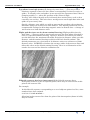
If you are displaying a grid dataset, switch between grey scale, pseudocolour and
sun angle displays and modify the parameters for these display formats as
required using options from the grid display menu (See Grid dataset display for
details).
•
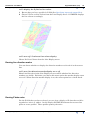
If you are displaying a points dataset, turn colour and size Z data display on and
off as required. (See Point dataset display for details.)
•
If you are editing or displaying a line dataset and wish to examine a Z field during
the process, specify the corresponding Z field using Load Z Field For Line Dataset
from the File menu. (See Specifying input and output files for detailed
instructions.
•
Zoom (enlarge an area of the display) and/or pan (examine different regions while
enlarged) (See Zooming and panning the display for information).
•
Query points (or distances or pairs of points in a single line of a line dataset) in
the dataset display. INTREPID will report information about the point(s) in the
Flight Path Editor Main window (See Querying points for details)
6
If you are not editing a line dataset go to step 10.
7
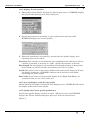
Detect the portions of traverse lines that you wish to delete by
•
Viewing the dataset with appropriate display options;
•
Using query operations.
See Line Dataset display for details.
8
Save the results of line data validation tests if required (See Saving line data
validation results for details).
9
Set segments and ends of traverse lines to null as required. Specify the end or
segment and use Delete End/Segment from the Edit menu. See Deleting
segments of traverse lines for details.
10 Repeat the data viewing and editing operations (steps 5–9 (or 4–9 including
adjusting loaded datasets)) as required.
11 If you wish to save the edited data, specify field names for the new X and Y
geographic location data using Save Output X and Y Fields from the File menu.
INTREPID will save the new X and Y data for your dataset as specified. See
Specifying input and output files for detailed instructions.
Library | Help | Top
© 2012 Intrepid Geophysics
| Back |