1
INTREPID User Manual
Library | Help | Top
Flight Path Editor (T19)
3
| Back |
12 If you wish to record line dataset input and output specifications and the editing
operations performed in this session as a task specification (.job) file in order to
repeat a similar task in batch mode later or for some other reason, use Save
Options from the File menu. (See Specifying input and output files for detailed
instructions.)
Note that the Flight Path Editor can only record input and output line dataset
field specifications and line editing processes in task specification files. (See
Displaying options and using task specification files for more information).
13 If required, repeat steps 2–12, varying the parameters and/or data files as
required.
14 To exit from Flight Path Editor, choose Quit from the File menu.
Notes:
•
You can control the effect of mouse operations in the dataset display area using
the Mouse Mode options in the Command area of the Flight Path Editor Main
window. See Mouse mode summary for details.
•
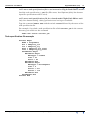
To view the current set of traverse line editing specifications choose Report from
the Window menu. INTREPID displays the Flight Path Editor Report window.
See Displaying options and using task specification files for details and an
example of a set of specifications.
•
You can view Help information by choosing options from the Help menu (See
Help).
•
You can execute Flight Path Editor line editing tasks as a batch task using a task
specification (.job) file that you have previously prepared. See Displaying
options and using task specification files for details.
Specifying input and output files
To use Flight Path Editor, you will need to specify the dataset(s) you wish to view. If
you wish to examine the Z data from a line dataset during the process, you must also
specify the Z field. If you wish to edit a line dataset and save the edited data, specify
field names for the new X and Y geographic location data.
INTREPID identifies the X, Y, line number and fiducial fields using dataset aliases.
The dataset must have the following aliases, identifying appropriate field files.
Alias
Field File
X
X coordinate (geographic location)
Y
Y coordinate (geographic location)
LineNumber
line number *
FID
fiducial sequence *
* These fields are optional. If you do not specify them, INTREPID will prompt you
with an Open dialog box to specify them. If you do not specify them INTREPID will
use a default system to create the missing numbers (SeeLine, fiducial and point
numbers for details).
See "Vector dataset field aliases" in INTREPID database, file and data structures
(R05) for more information about aliases.
Choose the options as required from the File menu.
Library | Help | Top
© 2012 Intrepid Geophysics
| Back |