1
INTREPID User Manual
Library | Help | Top
Flight Path Editor (T19)
21
| Back |
2
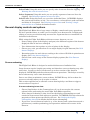
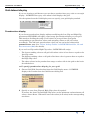
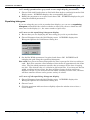
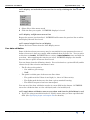
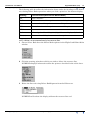
Choose Line Data Validation In Red from the Line Display menu. INTREPID
displays the Data Validation Parameters dialog box
3
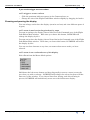
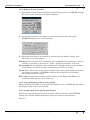
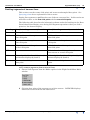
Turn on the data validation tests and specify the corresponding parameters as
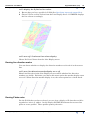
required, then choose OK. INTREPID displays the dataset with the traverse line
paths or sections of paths that fail the data validation test shown in red (i.e., the
data for which the statements in the dialog box are true).
4
Adjust the tests as required by repeating steps 2 and 3 above.
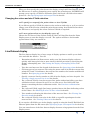
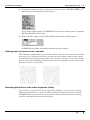
>> To cancel Line Data Validation in red display
Choose No Line Colours from the Line Display menu
Data validation tests and parameters
Here is a detailed description of the data validation tests and parameters.
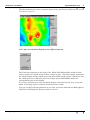
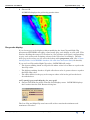
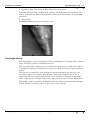
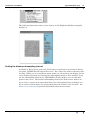
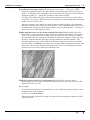
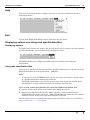
Z data ranges ('Z value is not between ...') INTREPID will reject (mark in red) points
whose Z values are outside the range you specify. Specify lower and upper values
of the range of Z values in the corresponding text boxes. The default values are
the maximum and minimum values of the Z data. Here is an illustration of the
results of a Z data range validation test.
Z value is null If you turn on this check box, INTREPID displays all points in red for
which the corresponding Z data value is null.
Library | Help | Top
© 2012 Intrepid Geophysics
| Back |