1
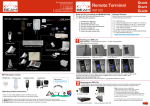
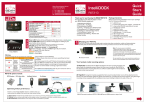
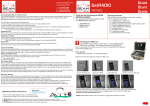
Setting up your BEAM RST100 Remote Terminal Handset Line iHandset COMM port 7 Rear of RST100 Antenna 3 Remote LOG port Connect the AC/DC Power With LIVE power turned OFF, connect power jack to rear of RST100. Secure cable by tightening collar ! 4 Power CAUTION: DO NOT connect LIVE power to the battery until installation is complete. Connect handset (optional) Connect a telephone handset, answering machine or cordless phone into the Line or Accessory socket. This socket supports a standard RJ11 plug. Facsimile Messaging via a standard RJ11 connection is not supported on the Iridium Network see your Service Provider to discuss the dedicated FX2600 Iridium Fax Unit or visit us at www.beamcommunications.com Powering Up & Making a Call When all previous 1- 6 steps have been completed, confirm that the antenna is connected and the power loom active. Once power is connected, allow up to 3 mins for the LEDs to register with network. To successfully make a call on the Iridium network, you need: 1) Dial tone on the telephone handset 2) Call LED must shine green or orange continuously. Continue to make your phone call as you normally use a traditional phone, noting any dialling prefix instructions advised by your service provider. Once you have entered the phone number you will hear progress pips from the Iridium network. It can take up to 30 seconds for the Iridium network to connect a call, so a pause at this stage is not unusual. You will shortly hear the called party end ringing, or hear a busy tone and voice message indicating why your call was not possible. When the other party answers the Call LED will change from steady orange to flashing orange, indicating 'call in progress'. This is a normal operating procedure. To end the call, hang up the handset. The Call LED light will then turn off. LEDs Power LED: flashes during self-diagnosis then illuminates a steady green. Vmail/SMS LEDs: flashes to indicate message(s) are waiting in your voice mailbox to be retrieved. This service is subject to network support and not available from all providers. Connect Intelligent handset (optional) Connect to the Iridium Intelligent Handset, if supplied, directly to the Handset socket of the RST100. Only use the extension cables for this handset provided. Cables up to 30 metres in length are available from your Service Provider. Call LED: Varies with status of call, which can be: In Call, Waiting to connect, or Incoming call Front of RST100 5 Connect a Laptop/PC Plug the serial cable into the Comm Port of the RST100. Signal LED: indicates strength of Iridium signal at your location. RED= no signal/PIN code required ORANGE= low signal GREEN = Good signal NOTE: If no serial port is available, try using a USB-Serial connector (not supplied). PIN Codes To make and receive calls, you may need to enter a PIN code. Refer to manual for more information. RST100 Signal LED 6 Connect antenna & cable 1.Plug the antenna cable into the antenna jack located on the rear panel of the RST100, as shown below. Secure this cable by tightening the connector collar. Flashing Red LED 2. The specified cable being used must not exceed the Iridium 3dB maximum loss rating. This will ensure maximum performance of your RST100. Refer to your Service Provider for full details or to purchase an approved cable. Flashing Red LED See: “Iridium Antenna Guide” or visit us at Constant LED www.beamcommunications.com Handset tone Distinctive dial tone: two tones of equal length Distinctive dial tone: high tone is longer than low tone Normal dial tone Action required Enter four digit SIM PIN and await a change of tone (up to 10 seconds), then hang up. When successful the phone will register and proceed with normal use Enter the PUK code, await a change of tone (up to ten seconds) and hang up. When successful the phone will register and proceed with normal use No action required If any problems, try the following: 1. Repeat these instructions to ensure everything has been completed. 2. Is there power to the unit? Check all connections and fuses. 3. Is the SIM card active? If not, refer to your Service Provider 4. If the antenna signal is not strong you will need to move location to access better coverage and re-test. For additional troubleshooting refer to your manual or visit us: www.beamcommunications.com