1
CHAPTER 3 – THE WinIDE USER INTERFACE
3.9.1
P&E
Microcomputer
Systems, Inc.
Undo
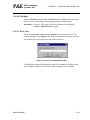
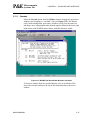
Choose Undo to undo or reverse the last action or change you made in the
active source window.
Changes that you make to the contents of the window (and that are undoable or
reversible) are saved in an undo stack, where they accumulate, up to a
maximum of 20 instances. You can reverse your changes in descending order
of the sequence in which they were made. If no more changes remain in the
stack, the Undo option is disabled.
Reversible actions are local to each source window. Commands that are not
reversible do not contribute to the undo stack. You cannot, for example, undo
the command to open a new window using the Undo command.
Alternatives: Type CTRL + Z. This is the keyboard equivalent to selecting the
Edit - Undo menu option.
3.9.2
Redo
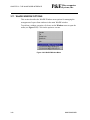
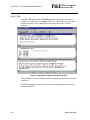
Choose Redo to restore the most recently undone action in the active window.
The Redo option restores actions undone or reversed by the Undo option, in
ascending order, that is, last action first. Reversible changes to the window’s
contents accumulate in the window’s undo stack. Once a change has been
reversed using the Undo option, the change can be reversed, using the Redo
option. When no more changes remain (that is, the top of the Redo stack is
reached) the Redo option is disabled.
Some commands are not reversible. They do not contribute to the undo stack
and therefore cannot be redone. For example, because reversible actions are
local to each source window, opening a new window is an action that cannot be
undone using the Undo command, or redone using the Redo command.
Note: The Redo option is active only if you have used the Undo option to modify the
contents of the active source window.
Alternative: Type SHIFT + CTRL + Z. This is the keyboard equivalent to
selecting the Edit - Redo menu option.
3-16
M68ICS08SOM/D