1
1.
2.
3.
4.
5.
Open Master Database
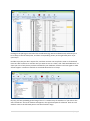
Click on plus sign next to required Crop Type
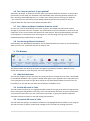
Click on the Crop name
Adjust the “Default Map Colour” in the right hand Variety pane
Close Master Database to save changes
We now want these changes to be implemented in the program.
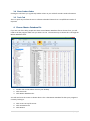
5.4 Update Client From Master
This button allows the changes that we have just made to be immediately implemented in the
program. The steps below are for Default Map colours specifically, but ticking other boxes will adjust
what is updated appropriately.
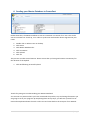
6. Click on “Update Client from Master” in the Home tab
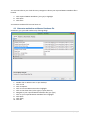
7. Tick “Default Map Formatting”
8. Click OK
These changes will now be pushed through from your Master Database to your active client file.
9|Page