1
5. Customise your Master Database
Picture this: we have information for about 95% of any of the crops, varieties, fertilisers, operations
and timing comments that our users require all located in our Master Database. These populate the
drop down menus throughout your program. Chances are there are going to be large chunks of
information that you never use. Our goal here is to cut this list down to things that you actually use
to save you flicking through acres of superfluous information.
1. Double click on Adviser icon on desktop to open program
2. Click Home
3. Click Master Database
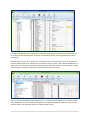
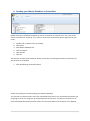
The terminology we use within the Master Database is “Exclude” and “Unexclude”. If something has
a tick next to it that means it is Excluded (not included) in the lists within the program. Items without
ticks are Unexcluded (included). Well confused? Just take it steady, one section at a time and be
methodical.
5.1 Reducing your Master Database
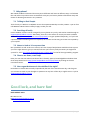
Starting at the beginning, so with Crops. There are layers in the Master Database, they are classified
by Crop first, then variety. Excluding an item at the top of the ladder will exclude items underneath it
further down the ladder. For example, if you exclude all Narrow Leaf Monocots, you will not be able
to see any barley, sorghum, oats, wheat etc.
6|Page