1
Operator Workstation User’s Manual
2-5
Displaying the Expanded IDs
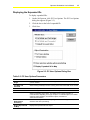
To display expanded IDs:
1.
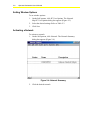
On the SetUp menu, click PC User Options. The PC User Options
dialog box appears (Figure 2-3).
2.
Click the box to the left of expanded ID.
3.
Click Save.
Figure 2-3: PC User Options Dialog Box
Table 2-3: PC User Options Parameters
Field
Description
Full Width and Full
Height
Allows viewing of Metasys screens covering most of the entire width and height of
your PC monitor
Full Width and
Cascaded
Allows viewing of Metasys screens covering most of the entire width of PC monitor
Default Size and Order
Restores object to default size and order
To Focus Window
Allows viewing of detailed information about the object
Default Action
Allows commanding of the object. The default action is either operation or
communication, depending on the type of object. For software objects, the default
setting is Action-Operation. For hardware objects, the default is
Action-Communication.
Close Previous
Window When
Penetrating
Closes one Metasys window when opening another. If no setting is chosen, the
windows close when penetrating.
Display Expanded ID
On Map
Displays the expanded ID of the object