1
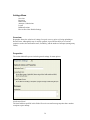
Dates
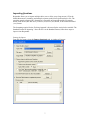
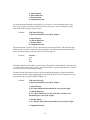
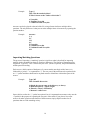
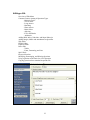
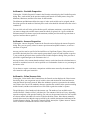
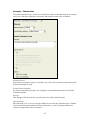
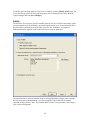
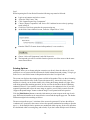
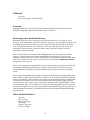
Start and end dates and times may be specified for when the quiz is available for students.
Password
Only users who enter this password will be granted access to the quiz.
IP Restriction
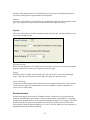
Only users coming from the specified IP address will be granted access to the quiz.
Respondus LockDown Browser
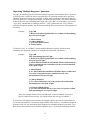
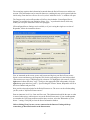
If your institution uses Respondus LockDown Browser, it is possible to enable the quiz
settings for the browser by selecting one or both of the Respondus LockDown Browser
options.
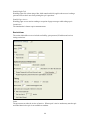
Time Limit
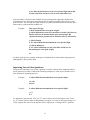
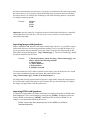
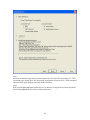
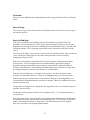
When enforced, students will only have the available time (in minutes) to complete the quiz.
Optionally, a count down clock may be shown.
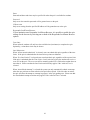
Late Submissions
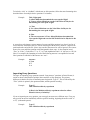
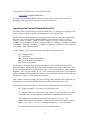
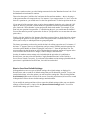
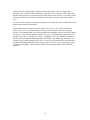
When “Allow normal submission” is selected, users can submit their quiz regardless of the time
limits. If the quiz is submitted after the time limit no points are deducted.
When “Use Late Limit of” is selected users can submit their quiz, regardless of the set time limit.
If the quiz is submitted after the Time Limit + Late Limit time expires, the student will receive a
score of 0 on the quiz. The score can still be manually graded if it is felt that the student deserves
more than 0. Please note that the Late Limit restriction only applies if the “enforced” box is
selected.
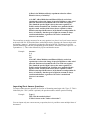
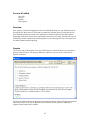
When “Auto-Submit Attempt” is selected the system can only automatically submit an attempt
when the user performs an action after the time period has expired. If the user takes no action,
the quiz will show the attempt as „attempt in progress‟ in the quiz grading area. Please note that
the Auto-Submit Attempt restriction only applies if the “enforced” box is selected.
41