1
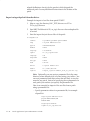
b. Edit the adsvapc.cmd file as follows to use the httpds.conf file
and the SSL definitions contained within it:
Change:
e:\oracle\prodcomn\util\OamkSvc.exe –si \
”Oracle Apache Server PROD” –e –a –c
”e:\oracle\prodora\iAS\Apache\Apache\Apache.exe –f
e:\oracle\prodora\iAS\Apache\Apache\conf\httpd.conf”
to
e:\oracle\prodcomn\util\OamkSvc.exe –si \
”Oracle Apache Server PROD” –e –a –c
”e:\oracle\prodora\iAS\Apache\Apache\Apache.exe –D SSL –f
e:\oracle\prodora\iAS\Apache\Apache\conf\httpds.conf”
c. Deinstall the existing Apache service.
From a command window run:
adsvapc.cmd –deinstall
(You may get an exiting with status 1 the first time this is run. Rerun it
a second time and it should exit with status 0.)
d. Install the modified Apache service.
In the same command window run:
adsvapc.cmd
This should recreate the service with reference to httpds and will also
use the SSL portions of that file.
Test Startup of Apache and Oracle Applications Sign–On
Start up the Apache server in SSL mode on UNIX by invoking
adapcctl.sh (which will invoke the httpdsctl script) or on Windows
NT/2000 by starting the Apache service.
On UNIX, you can ensure that there are several spawned processes for
Apache through use of the command ps –ef | grep util. On NT/2000,
you should use the processes taskbar to check for Apache processes.
If your server key is encrypted, you will be prompted for the PEM pass
phrase that you chose when creating your server’s private key.
Ensure that Apache can startup successfully before continuing and that
you successfully get an SSL connection to the default Apache banner
G – 30
Oracle Applications System Administrator’s Guide