1
Troubleshooting
GV-System is designed to provide you with trouble-free performance. If it does not appear to
be functioning correctly, please make sure all connectors are properly attached and follow
these troubleshooting steps:
GV-System has video and/or audio lost.
If your GV-System fails to show video, audio or both, try these steps:
1.
Check the video/audio connection.
2.
Make sure the video/audio device is turned on.
3.
Make sure the video standard in your country matches the setting in GV-System.
4.
Switch the cable from the functional channel to the non-functional channel, and vice
versa. If the previously non-functional channel is now able to deliver video/audio, you
should check the video/audio device itself and its related cables.
The screen image appears distorted or jitters.
If the screen image seems to be distorted, jitter, or not to look right, try these steps:
1.
Make sure the video standard in your country matches the setting in GV-System.
2.
Make sure the camera and its cable are not damaged or frayed. Try to replace a
camera or cable to see if this fixes the problem.
Messages “Can’t find keypro” and “Card Setup Fail” appear when
GV-System starts.
1.
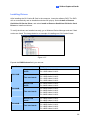
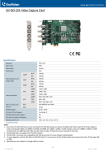
Verify the video capture card driver. See 1.7 Installing Drivers.
2.
Insert the video capture card to a different PCI slot to see if this fixes the problem.
3.
If you are using the video capture card V1, attach an appropriate Keypro to the PC’s
parallel port and run Dos2kreg.exe from the GV-System folder.
4.
If using GV-600, GV-650 or GV-650 and running the version between 7.0 and 7.0.5.0,
you may need an appropriate USB dongle.
5.
If running the version of 8.0 or later and using GV-600A, GV-650A, GV-800A, GV1120A, GV-1240A or GV-1480A, you may follow Steps 1 and 2 to fix the problem.
197