1
Call 1-866-282-1029, 1-888-228-8440 (toll free)
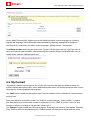
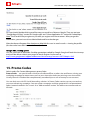
Membership payment is set with the currency you choose in Billing>Currency type section.
The changes are added after “Add” button is pressed. Payment settings are deleted with the help of
“Delete” button next to payment period and cost in “Period – Cost” column.
Note 1: Unlike “User account” payment type, it is necessary to indicate membership period. After
payment is made, user won’t be able to become unpaid user and after paid period finishes he will be
transferred to default group automatically.
6. Billing
Billing is one of the most important Site sections. Different groups’ membership payments are
managed here. If you start configuring you site prices, it’s better that you start with setting your site
currency, activating Payment System(s) you’re going to use to receive payments from your users, and
Prices themselves.
6.1. Payment settings
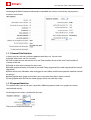
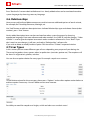
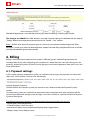
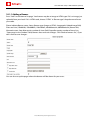
In this section you can set payment system, i.e. indicate currency type, site payment unit name and
their ratio. “Save” button is used to save the changes.
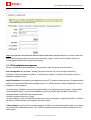
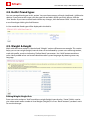
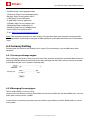
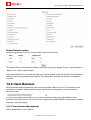
Activate Payment System(s)
Click the link for the Payment system you want to use at “Select and Activate Payment System:”
section.
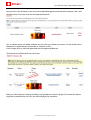
To activate any system you should have merchant account with them and some activation info for
your account (like email and password; ID; login ) to insert in a fields in a special window for Payment
System at Dating Pro.
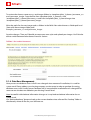
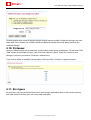
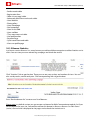
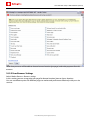
The following payment gateways can be activated in the current Dating Pro version:
• PayPal (http://www.paypal.com)
• 2CheckOut (http://www.2co.com)
• authorize.net (http://www.authorize.net)Ogone (http://ogone.com/)
• Allopass (http://www.allopass.com/)
© 2009 Pilot Group Ltd. All rights reserved.