1
W A V E L O R E
C O N T R O L S
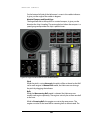
Man Overboard Menu
For simulating a man-over-board scenario this menu provides the Instructor with
the option of randomly inserting a sailor into ocean on either the port or
starboard side of the DDG. The bridge team will have to react accordingly to
rescue the sailor.
Placing a Man Overboard
1. Use the Man Overboard menu and select either port or starboard side to
drop a sailor overboard.
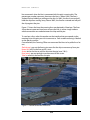
2. Zoom in to where, Oscar, the Man Overboard Avatar is positioned in the
sea then click and drag him to reposition.
3. Direct students to react accordingly to rescue Oscar
4. The cancel button will appear which allows the Instructor to end the
scenario at any time.
**Note: After a smoke and a float have been dropped by the Conning Officer
they cannot be dropped again until the Instructor cancels the MOB scenario
and places Oscar overboard again.
Scenario Control Menu
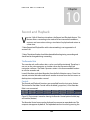
This menu allows the Instructor to save the current settings and attributes of
your scenario. The scenario can then be loaded and replayed. This is particularly
helpful if an entire class is given the chance to work through the same problem
in different groups.
Save a Scenario
1. Use the Scenario Control menu and enter a name for the scenario to be
saved.
2. Click “Save”
Load a Scenario
1. Use the Scenario Control menu and select the name of the scenario to be
loaded.
2. Click “Load”
**Note: This currently saves all ship orientation, velocity, position, time of
day, and wind settings for the DDG and all contacts within the scenario.
Add Contacts Menu
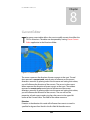
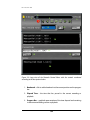
When this menu is activated, the screen changes to a top down view of the
WaveLore environment. The Instructor can then add contacts to a scenario.
Adding Contacts to a Scenario
1. Click on the “Add Contact” menu while in Scene Map View.
2. Select a contact to drop into the scene.
17