1
PrimoPDF
Version 4.0
User Manual
Totally Free PDF Creation because It's everbody's PDF™
Brought to you by
™
NOTICE TO USER:
THIS IS A CONTRACT. BY INSTALLING THIS SOFTWARE YOU ACCEPT ALL THE TERMS AND CONDITIONS OF THIS AGREEMENT.
This activePDF, Inc. ("ACTIVEPDF") End User License Agreement ("EULA") accompanies this activePDF product ("PRIMOPDF") and related explanatory
materials ("SOFTWARE"). The term "SOFTWARE" shall also include any upgrades, modified versions or updates of the Software licensed to you by
ACTIVEPDF. Please read this EULA carefully. If you are reading this prior to electronic distribution, you will be asked to accept this agreement and
continue to install or, if you wish to decline this agreement, in which case you will not be able to use the Software.
The SOFTWARE is protected by copyright laws and international copyright treaties, as well as other intellectual property laws and treaties. The
SOFTWARE is licensed, not sold.
1. GRANT OF LICENSE : This EULA grants you the following rights:
a. ACTIVEPDF grants to you as an individual the nonexclusive license to install and use the SOFTWARE on as many computers as you wish.
b. If you are an entity, ACTIVEPDF grants you the right the same rights as above.
c. You agree not to modify the Producer or Creator fields within any PDF documents created by SOFTWARE.
d. You agree not to interfere with or override the delivery or display of any advertising in the SOFTWARE.
e. ACTIVEPDF reserves all rights not expressly granted.
2. COPYRIGHT. The SOFTWARE is owned by ACTIVEPDF and its suppliers, and its structure, organization and code are the valuable trade secrets of
ACTIVEPDF and its suppliers. The SOFTWARE is protected by United States Copyright Law and International Treaty provisions. You may use
trademarks only insofar as required to comply with Section 1 of this EULA and to identify printed output produced by the Software, in accordance
with accepted trademark practice, including identification of trademark owner's name. Such use of any trademark does not give you any rights of
ownership in that trademark. Except as stated above, this EULA does not grant you any intellectual property rights in the Software.
3. RESTRICTIONS. You may not sell, resell, rent or lease the SOFTWARE. You agree not to modify, adapt, translate, reverse engineer, decompile,
disassemble or otherwise attempt to discover the source code of the Software. You may not alter or modify in any way the installer for the
Software, or create a new installer for the Software. Redistribution rights, if any, are outlined below.
4. ADDITIONAL RESTRICTIONS.
NONE
5. SUPPORT. ACTIVEPDF provides NO technical support for the SOFTWARE. You agree that you accept the software on an "as-is" basis.
6. REDISTRIBUTABLE CODE. You may freely distribute the software, so long as the restrictions noted above are met.
7. EXPORT RESTRICTIONS. You agree that neither you nor your customers intend to or will, directly or indirectly, export or transmit (a) the
SOFTWARE or related documentation and technical data or (b) your software products as defined under of this EULA (or any part thereof), or any
process or service that is the direct product of the SOFTWARE to any country to which such export or transmission is restricted by any applicable
U.S. regulation or statute, without the prior written consent, if required, of the Bureau of Export Administration of the U.S. Department of
Commerce, or such other governmental entity as may have jurisdiction over such export or transmission.
8. NO WARRANTY. The SOFTWARE is being delivered to you AS IS and ACTIVEPDF makes no warranty as to its use or performance. ACTIVEPDF AND
ITS SUPPLIERS DO NOT AND CANNOT WARRANT THE PERFORMANCE OR RESULTS YOU MAY OBTAIN BY USING THE SOFTWARE OR DOCUMENTATION.
ACTIVEPDF AND ITS SUPPLIERS MAKE NO WARRANTIES, EXPRESS OR IMPLIED, AS TO NONINFRINGEMENT OF THIRD PARTY RIGHTS, MERCHANTABILITY,
OR FITNESS FOR ANY PARTICULAR PURPOSE. IN NO EVENT WILL ACTIVEPDF OR ITS SUPPLIERS BE LIABLE TO YOU FOR ANY CONSEQUENTIAL,
INCIDENTAL OR SPECIAL DAMAGES, INCLUDING ANY LOST PROFITS OR LOST SAVINGS, EVEN IF AN ACTIVEPDF REPRESENTATIVE HAS BEEN ADVISED OF
THE POSSIBILITY OF SUCH DAMAGES, OR FOR ANY CLAIM BY ANY THIRD PARTY. Some states or jurisdictions do not allow the exclusion or limitation
of incidental, consequential or special damages, or the exclusion of implied warranties or limitations on how long an implied warranty may last, so
the above limitations may not apply to you.
9. GOVERNING LAW AND GENERAL PROVISIONS. This EULA will be governed by the laws of the State of California, U.S.A., excluding the application
of its conflicts of law rules. This EULA will not be governed by the United Nations Convention on Contracts for the International Sale of Goods, the
application of which is expressly excluded. If any part of this EULA is found void and unenforceable, it will not affect the validity of the balance of
the EULA, which shall remain valid and enforceable according to its terms. You agree that the Software will not be shipped, transferred or
exported into any country or used in any manner prohibited by the United States Export Administration Act or any other export laws, restrictions
or regulations. This EULA shall automatically terminate upon failure by you to comply with its terms. This Agreement may only be modified in
writing signed by an authorized officer of ACTIVEPDF.
10. Notice to Government End Users. If this product is acquired under the terms of a: GSA contract- Use, reproduction or disclosure is subject to
the restrictions set forth in the applicable ADP Schedule contract; U.S. DoD contract- Use, duplication or disclosure by the Government is subject
to restrictions as set forth in subparagraph (c) (1) (ii) of 252.227-7013; Civilian agency contract- Use, reproduction, or disclosure is subject to
52.227-19 (a) through (d) and restrictions set forth in this EULA.
Unpublished-rights reserved under the copyright laws of the United States. activePDF, Inc., a California Corporation, 27405 Puerta Real, Suite 100,
Mission Viejo, California 92691.
Effective 4/5/2007
Credits
Producers: Aaron Schnarr, Douglas Saltsman
Technical Writers: Arleigh Rogers, Nicole Diaz, Courtney Crandall
Copyright 2008, activePDF, Inc. All Rights Reserved.
Page i of ii
Table of Contents
Getting Started .................................................................................................. 1
Installing PrimoPDF ................................................................................... 1
Uninstalling PrimoPDF ................................................................................ 1
Creating PDFs.................................................................................................... 2
Configuring PrimoPDF Options .............................................................................. 4
PDF Output Options ................................................................................... 4
Document Properties ................................................................................. 5
Security ................................................................................................. 6
PrimoPDF Post Process Options ..................................................................... 8
PrimoPDF Program Options .......................................................................... 9
Setting PrimoPDF Custom Preferences .................................................................. 11
Customizing your PDF output...................................................................... 11
General Settings ..................................................................................... 12
Color Image Settings ................................................................................ 13
Grayscale Image Settings .......................................................................... 14
Mono Image Settings ................................................................................ 15
Copyright 2008, activePDF, Inc. All Rights Reserved.
Page ii of ii
PrimoPDF Version 4.0 User Manual
Getting Started
To install PrimoPDF, your computer should be equipped with the following:
•
Microsoft® Windows® 2000, Windows NT®, Windows® XP, Windows Server® 2003, or Windows
Vista®.
•
A minimum of 30 MB of available disk space.
NOTE: Additional disk space may be required, depending on the size and type of files being converted.
Installing PrimoPDF
To install PrimoPDF
1. Download the PrimoPDF installer from www.PrimoPDF.com. There are two versions of the
PrimoPDF installer available for download, one for 32-bit versions of Windows® and one
for 64-bit versions. Be sure to download the file appropriate for your operating system.
2. When prompted for a destination, navigate to your desktop and click OK.
3. On the desktop, double-click the downloaded installer. Typically, the file is named
FreewarePrimoXXSetup.exe, where XX is a two-digit number.
4. Follow the instructions on the screen to complete the installation.
NOTE: PrimoPDF requires the .NET 2.0 Framework. If the .NET Framework is not detected during
installation, you will be prompted to install it. Click Install .NET to continue. The Windows Installer 3.1
will be installed, followed by the .NET framework. Upon completion, the installation of PrimoPDF will
resume.
Figure 1. The .NET Framework 2.0 installer window
Uninstalling PrimoPDF
To uninstall PrimoPDF
1. Click Start, then point to Programs > activePDF > PrimoPDF, and click Uninstall PrimoPDF.
2. Follow the instructions on the screen to uninstall PrimoPDF.
Copyright 2008, activePDF, Inc. All Rights Reserved.
Page 1 of 16
PrimoPDF Version 4.0 User Manual
Creating PDFs
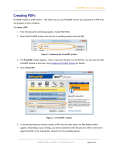
PrimoPDF installs as a PDF printer. This means you can use PrimoPDF to print your documents to PDF from
any program on your computer.
To create a PDF
1. From the document-authoring program, choose File>Print.
2. Select the PrimoPDF printer from the list of available printers and click OK.
Figure 2. Selecting the PrimoPDF printer
3. The PrimoPDF window appears. Enter a name and location for the PDF file. You can also set other
PrimoPDF options at this time. See Configuring PrimoPDF Options for details.
4. Click Create PDF.
Figure 3. ‘PrimoPDF’ window
5. If the selected location already contains a PDF with the same name, the File Exists window
appears. Depending on your settings, you will be presented with the option to either overwrite or
append the PDF to the existing file. Choose from the available options.
Copyright 2008, activePDF, Inc. All Rights Reserved.
Page 2 of 16
PrimoPDF Version 4.0 User Manual
Figure 4. ‘File Exists’ window
NOTE: PrimoPDF Program Options allow you to choose whether to overwrite or append an existing
PDF, when a PDF with the same name is encountered. See PrimoPDF Program Options for details.
NOTE: By default, the PDF will automatically be opened in your default PDF viewer.
•
To change the action to take upon PDF completion (e.g. automatically attach the PDF to an
email message), refer to PrimoPDF Post Process Options.
•
To change the program to be used in opening the PDF, refer to PrimoPDF Program Options.
Copyright 2008, activePDF, Inc. All Rights Reserved.
Page 3 of 16
PrimoPDF Version 4.0 User Manual
Configuring PrimoPDF Options
PDF Output Options
PrimoPDF includes five PDF output options, each of which can be used to produce PDF files at an optimized
file size and quality level, depending on how you intend to use the document.
Figure 5. PrimoPDF PDF Output Options
Screen. Produces a PDF optimized for screen viewing. This configuration creates small PDF
files and reduces image resolution to 72 dpi, which may reduce print quality.
Print. Produces a PDF optimized for printing to most home and office printers.
eBook. Produces a PDF optimized for eBook usage.
Prepress. Produces a PDF optimized for printing to commercial-quality printers. This
configuration creates large PDF files and will automatically embed all fonts and high
resolution images for best results when printed on a system other than the one on which the
PDF was generated.
Custom. Enables you to specify custom settings for your PDF output. Refer to Setting
PrimoPDF Custom Preferences for further details.
Copyright 2008, activePDF, Inc. All Rights Reserved.
Page 4 of 16
PrimoPDF Version 4.0 User Manual
Document Properties
PrimoPDF Document Properties allows you to specify a title, subject, author, and keywords for your PDF
document. This supplies users with basic information about the document, and provides a useful way to
search for information.
To set Document Properties
1. From the PrimoPDF window, under Document Properties, click Change.
Figure 6. Accessing Document Properties
2. In the Document Properties window, enter the desired properties and click OK.
Figure 7. ‘Document Properties’ window
Document Properties. The Title, Author, Subject, and Keywords can be set to provide the user with
additional information about the document.
Always Use These Settings. If set, PrimoPDF will apply the same Document Properties to subsequent PDFs.
Copyright 2008, activePDF, Inc. All Rights Reserved.
Page 5 of 16
PrimoPDF Version 4.0 User Manual
Security
PrimoPDF enables you to set security for your PDF document, so that you can control the types of actions
users can perform on the file.
To set PDF Security
1. From the PrimoPDF window, under PDF Security, click Change.
Figure 8. Accessing PDF Security Options
2. In the Document Security window, enter the desired settings and click OK.
Figure 9. ‘Document Security’ window
Copyright 2008, activePDF, Inc. All Rights Reserved.
Page 6 of 16
PrimoPDF Version 4.0 User Manual
Open Password. This setting enables you to require that users supply the specified password in order to
open and view the PDF.
Require a password to open the document. Select this option to specify a password to be used
when opening the PDF.
Permissions. These settings enable you to specify additional PDF security options.
Require a password to change security settings and access specific functions. Select this option
to specify a password that must be supplied in order to change security settings, and to choose
from additional security options.
NOTE: If you make changes to the permissions settings but do not specify a password, users will be
able to override your settings. For this reason, it is recommended that you always specify a
password when making changes to these settings.
•
Printing Allowed. Enables you to specify the level to which users can print your document.
None. Disables printing. Users will be unable to print your PDF document using a PDF
viewing application.
Low Resolution. Users will be allowed to print your document, but graphics and images in
your document will be printed at low resolution.
High Resolution. Users will be allowed to print your document at the highest resolution
possible, given your PDF settings.
•
Changes Allowed. Enables you to specify the level to which users can modify or access content
within your document.
None. Restricts users from making any changes to your PDF document, unless the specified
permissions password is supplied.
Creating, inserting, deleting and rotating pages. If set, user editing will be limited to
manipulating document pages, including adding, deleting, and rotating pages.
Filling in form fields and signing. If set, user editing will be limited to filling in form fields
and adding digital signatures.
Commenting, filling in form fields and signing. If set, user editing will be limited to
adding PDF comments, filling in form fields and adding digital signatures.
Any except extract pages. If set, users can perform any PDF editing action supported by
their PDF viewing application, except extracting pages.
•
Enable copying of text, images and other content. If checked, users will be able to select and
copy the content from your PDF document to their clipboard, for use in another file.
Copyright 2008, activePDF, Inc. All Rights Reserved.
Page 7 of 16
PrimoPDF Version 4.0 User Manual
•
Enable text access for screen reader devices for the visually impaired. If checked, allows
screen reading software to access the textual content in your file, for reading aloud.
Always Use These Settings. If set, PrimoPDF will apply the selected Security settings (including
password(s)) to subsequent PDFs.
PrimoPDF Post Process Options
PrimoPDF’s Post Process options allow you to specify an action to take once the PDF creation process is
complete.
Figure 10. Accessing Post Process Options
Open PDF. If selected, the created PDF will be saved to disk and then opened using the program
specified in PrimoPDF’s Program Options. Refer to PrimoPDF Program Options for information on
selecting a program to be used.
Email PDF. If selected, the created PDF will be saved to disk, and a copy attached to a blank email
message using your default email editor.
Do Nothing. If selected, the created PDF will be saved to disk and no further action will be taken.
Copyright 2008, activePDF, Inc. All Rights Reserved.
Page 8 of 16
PrimoPDF Version 4.0 User Manual
PrimoPDF Program Options
PrimoPDF’s Program Options enable you to control how the program operates.
To set PrimoPDF Program Options
1. From the PrimoPDF window, choose Options.
Figure 11. Accessing PrimoPDF Program Options
2. In the Program Options window, configure the options you wish to set and click OK.
Figure 12. ‘Program Options’ window
Configuration to Use. Allows you to select from one of the following predefined configurations.
•
Ebook. If selected, PrimoPDF will create a PDF using settings optimized for e-books.
•
Prepress. If selected, PrimoPDF will create a PDF using settings optimized for printing on a
commercial printer. This configuration will automatically embed all fonts.
Copyright 2008, activePDF, Inc. All Rights Reserved.
Page 9 of 16
PrimoPDF Version 4.0 User Manual
•
Default. If selected, PrimoPDF will create a PDF using its default settings, designed for output
intended for a wide variety of uses.
When Opening PDF Files Use. Allows you to select which application to use when opening the created PDF
files, once the conversion is complete.
•
Default PDF Viewer. If selected, PrimoPDF will attempt to open the created PDF in the
program specified in Windows as the default program to use when opening files with the .PDF
extension.
•
Custom Program. If selected, PrimoPDF will attempt to open the created PDF in the specified
program. Click the browse button to locate the program you wish to use.
NOTE: This setting requires that the Post Process option is set to Open PDF. Refer to PrimoPDF
Post Process Options for details on changing this setting.
If PDF Exists. Enables you to specify the action taken by PrimoPDF when encountering a PDF file with the
same name in the specified location.
•
Append. If selected, PrimoPDF will add the pages from your new PDF to the existing PDF.
Pages will be inserted after the last page of the existing PDF.
•
Overwrite. If selected, the existing PDF will be overwritten by the new PDF.
NOTE: This is the default setting in PrimoPDF.
Enable Logging. If selected, PrimoPDF will generate a conversion log detailing problems encountered
during the PDF conversion.
NOTE: The conversion log file is generated in the directory C:\Program Files\activepdf\PrimoPDF
using the name nameofconvertedfile.log.
Updates. Enables you to specify how frequently PrimoPDF checks for software updates.
NOTE: PrimoPDF requires internet access to check for software updates.
To change PrimoPDF Update Settings
1. From the PrimoPDF Program Options window, click Updates.
2. Select how often you would like PrimoPDF to check for software updates and click OK.
Figure 13. PrimoPDF Update Settings window
Copyright 2008, activePDF, Inc. All Rights Reserved.
Page 10 of 16
PrimoPDF Version 4.0 User Manual
Setting PrimoPDF Custom Preferences
Customizing your PDF output
PrimoPDF enables you to customize your PDF files by configuring a number of PDF output options.
To configure PrimoPDF Custom Settings
1. From the PrimoPDF window, choose Custom.
Figure 14. Accessing PrimoPDF Custom Settings
2. In the Custom PDF Settings window, select from the list of categories on the left to access the
settings you wish to change.
Figure 15. Choosing a Category
3. After making the desired changes, click OK.
4. In the PrimoPDF window, click Create PDF to create a PDF using the custom settings you provided.
Copyright 2008, activePDF, Inc. All Rights Reserved.
Page 11 of 16
PrimoPDF Version 4.0 User Manual
General Settings
The General pane allows you to set custom settings for your PDF output.
Figure 16. General Settings
PDF Version. Sets the PDF version for compatibility with PDF viewing and editing applications.
•
PDF Version 1.2. Compatible with Adobe Reader version 3.0 or later.
•
PDF Version 1.3. Compatible with Adobe Reader version 4.0 or later.
•
PDF Version 1.4. Compatible with Adobe Reader version 5.0 or later.
•
PDF Version 1.5. Compatible with Adobe Reader version 6.0 or later.
PDF Resolution. Sets the resolution for the entire document.
Auto Rotate Pages. If set, PDF page will be automatically rotated so that the majority of text is
horizontal. This can be useful when creating PDFs from landscape documents, so that pages are easier to
read onscreen.
Copyright 2008, activePDF, Inc. All Rights Reserved.
Page 12 of 16
PrimoPDF Version 4.0 User Manual
Color Image Settings
The Color pane enables you to set options to be used in creating a PDF that contains color images.
Figure 17. Color Images
Downsampling. Downsampling is used to help reduce the size of your outputted PDF file. It allows you to
optimize the images in the PDF to achieve the best balance between visual quality and file size.
Downsampling reduces an image’s resolution (to the resolution specified) by discarding pixels. Since there
is less information that needs to be saved, the resultant PDF file sizes are considerably smaller.
NOTE: If you are using a downsampling technique, you need to specify the desired resolution for the
outputted image. Resolution is measured in pixels per inch (PPI).
PrimoPDF has four options for downsampling color images:
•
Don’t downsample. With this option selected, PrimoPDF does not downsample the images in
your PDF file. This option produces the highest quality of output, and should be used if you
are creating PDF files for printing to a commercial quality printer.
•
Average. When average downsampling is selected, PrimoPDF averages neighboring pixels,
replacing pixels of similar value with the average pixel color. Averaging generally produces
good quality results and is suitable for printing to most desktop printers.
•
Subsample. Subsampling means that PrimoPDF takes a pixel from a sampled area and replaces
the entire area with the selected pixel. Subsampling results in smaller file sizes and faster PDF
creation, but you may notice a decrease in visual quality.
•
Bicubic. When bicubic downsampling is applied, PrimoPDF uses bicubic interpolation to
generate new pixel values. In plain language, PrimoPDF applies a special averaging method to
the image to create the highest quality possible. The bicubic option can create more pleasing
results than other subsampling methods, although the PDF file is slower to generate.
Copyright 2008, activePDF, Inc. All Rights Reserved.
Page 13 of 16
PrimoPDF Version 4.0 User Manual
Downsampling Threshold. Reduces image resolution to assist in reducing the PDF file size. You can
establish a color image resolution threshold. Any images having a resolution above the value specified will
be downsampled to the resolution specified.
Convert CMYK to RGB for onscreen viewing. Converts color images from the CMYK color model (used for
printing) to the RGB color model (used for onscreen display).
Grayscale Image Settings
The Grayscale pane enables you to set options to be used in creating a PDF that contains grayscale images.
Figure 18. Grayscale Images
Downsampling. Downsampling is used to help reduce the size of your outputted PDF file. It allows you to
optimize the images in the PDF to achieve the best balance between visual quality and file size.
Downsampling reduces an image’s resolution (to the resolution specified) by discarding pixels. Since there
is less information that needs to be saved, the resultant PDF file sizes are considerably smaller.
NOTE: If you are using a downsampling technique, you need to specify the desired resolution for the
outputted image. Resolution is measured in pixels per inch (PPI).
PrimoPDF has four options for downsampling grayscale images:
•
Don’t downsample. With this option selected, PrimoPDF does not downsample the images in
your PDF file. This option produces the highest quality of output, and should be used if you
are creating PDF files for printing to a commercial quality printer.
•
Average. When average downsampling is selected, PrimoPDF averages neighboring pixels,
replacing pixels of similar value with the average pixel color. Averaging generally produces
good quality results and is suitable for printing to most desktop printers.
Copyright 2008, activePDF, Inc. All Rights Reserved.
Page 14 of 16
PrimoPDF Version 4.0 User Manual
•
Subsample. Subsampling means that PrimoPDF takes a pixel from a sampled area and replaces
the entire area with the selected pixel. Subsampling results in smaller file sizes and faster PDF
creation, but you may notice a decrease in visual quality.
•
Bicubic. When bicubic downsampling is applied, PrimoPDF uses bicubic interpolation to
generate new pixel values. In plain language, PrimoPDF applies a special averaging method to
the image to create the highest quality possible. The bicubic option can create more pleasing
results than other subsampling methods, although the PDF file is slower to generate.
Downsampling Threshold. Reduces image resolution to assist in reducing the PDF file size. You can
establish a grayscale image resolution threshold. Any images having a resolution above the value specified
will be downsampled to the resolution specified.
Mono Image Settings
The Mono pane enables you to set options to be used in creating a PDF that contains monochrome (e.g.
black and white) images.
Figure 19. Mono Images
Downsampling. Downsampling is used to help reduce the size of your outputted PDF file. It allows you to
optimize the images in the PDF to achieve the best balance between visual quality and file size.
Downsampling reduces an image’s resolution (to the resolution specified) by discarding pixels. Since there
is less information that needs to be saved, the resultant PDF file sizes are considerably smaller.
NOTE: If you are using a downsampling technique, you need to specify the desired resolution for the
outputted image. Resolution is measured in pixels per inch (PPI).
PrimoPDF has four options for downsampling monochrome images:
Copyright 2008, activePDF, Inc. All Rights Reserved.
Page 15 of 16
PrimoPDF Version 4.0 User Manual
•
Don’t downsample. With this option selected, PrimoPDF does not downsample the images in
your PDF file. This option produces the highest quality of output, and should be used if you
are creating PDF files for printing to a commercial quality printer.
•
Average. When average downsampling is selected, PrimoPDF averages neighboring pixels,
replacing pixels of similar value with the average pixel color. Averaging generally produces
good quality results and is suitable for printing to most desktop printers.
•
Subsample. Subsampling means that PrimoPDF takes a pixel from a sampled area and replaces
the entire area with the selected pixel. Subsampling results in smaller file sizes and faster PDF
creation, but you may notice a decrease in visual quality.
•
Bicubic. When bicubic downsampling is applied, PrimoPDF uses bicubic interpolation to
generate new pixel values. In plain language, PrimoPDF applies a special averaging method to
the image to create the highest quality possible. The bicubic option can create more pleasing
results than other subsampling methods, although the PDF file is slower to generate.
Downsampling Threshold. Reduces image resolution to assist in reducing the PDF file size. You can
establish a monochrome image resolution threshold. Any images having a resolution above the value
specified will be downsampled to the resolution specified.
Compression. Set the compression filter for monochrome images:
•
CCITT (International Coordinating Committee for Telephony and Telegraphy) Fax Encoding.
This is a lossless compression method that uses standard fax compression and only applies to
black and white bitmap images.
•
Flate Encode. Uses the ZIP compression method to reduce image size without affecting the
image’s quality.
•
Run Length Encode. A form of compression that is particularly effective on files that contain
many long runs of the same byte, value, or character. It is primarily used on binary files.
Copyright 2008, activePDF, Inc. All Rights Reserved.
Page 16 of 16