1
194
Part III: Maintaining Your Vigilance
NTI BackupNow is available from www.ntius.com;
around $80. Backs up to CD, DVD, hard drives, MO, Zip
and Jaz, and USB jump drives.
Iomega Automatic Backup is available from www.iomega.
com; around $40. Backs up to Iomega Zip drives and Iomega
HDD drives. Drag-and-drop restore capability. 30-day free
trial available.
All of these products have a 30-day free trial and can be purchased and downloaded online.
Copying files to a CD or DVD
If you have a CD or DVD burner on your computer, it can be a
convenient way to back up data, especially if you have a lot of
data to back up. Who wants to back up a big hard drive to 150
floppies? Not me.
You can use the CD/DVD-creation software that came with your
CD or DVD drive (or with your computer), or you can purchase
software. Probably the best-known software available is Easy
CD Creator 6 from Roxio.
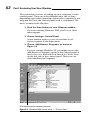
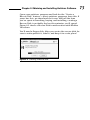
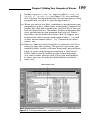
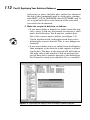
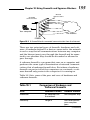
Roxio has a nice wizard (shown in Figure 12-1) to help you
select which data you want copied to a CD — again, you must
know where your important data resides (see the section
“Backup tips and strategies,” earlier in this chapter).
You can also use your CD/DVD software to create a new drive
letter (for instance, drive D:) to identify the drive that you
intend to copy files to. When that’s done, you have a couple
of options:
Use Windows Explorer to drag and drop files onto the
CD/DVD.
Use other programs to save files to the CD/DVD by
choosing File➪Save As and then selecting the CD/DVD as
the destination.
When you’re done with the CD/DVD, right-click and select
Eject from the pop-up menu, and the disc-writing software will
complete the writing process and eject the disc.