1
QUICK START GUIDE
FOUNDATION™
Manage Home Energy
Energy Management Tools
To avoid power outages and rising energy costs, your utility sends pricing information and/or energy events to manage energy use.
Customers who participate in these events will reduce their energy consumption and save money. Your new thermostat will help you
manage your energy use.
Energy Saving Event
The Blue light indicates there is an Energy Saving Event active and the thermostat has adjusted the temperature to save energy. To
quickly override a voluntary event, press or
to adjust the temperature.
View Energy Costs
Press and select Consumption Information. You can cycle through the various energy screens using the
daily, and monthly energy costs & use.
button to see your current,
Balance Savings & Comfort
Press and navigate to >Events Response Settings>Conservation Settings. This will help determine how much temperature offset will
be enabled when a price increase occurs. Note: Maximum Comfort setting will ignore all rate increases.
Control the Temperature
Set Thermostat Mode & Fan Settings
Press and select Mode & Fan Settings. Select the Mode you would like to use:
heating and cooling systems are off but the fan may still run for home ventilation
only the cooling system is on and used
only the heating system is on and used
automatically selects heat or cool to maintain the target temperature
engages emergency heat – only appears if you have a heat pump with auxillary heat
After selecting the desired Mode, the Fan Settings screen appears. Normally this is set to AUTO. However, if you would like your fan to
circulate air constantly change this setting to ON.
Change the Temperature Temporarily
Press or until your desired temperature is displayed. The hold will remain in effect until the next schedule change.
Cancel a Temporary Temperature Hold
Press and navigate to >Temperature Hold>Cancel Hold. Select Yes to confirm cancellation.
Program a Schedule
If you wish to customize the default schedule, press
and navigate to >Schedule Settings>Edit Current Schedule (for a specific
setpoint) or >Schedule Settings>Reset Schedule Wizard to reset your entire schedule.
Set and Change Display Options
Press and navigate to >Settings>Display Options. From here, you can change settings including temperature units,
and standby brightness.
Customer Service
Model Number: FZ100
Support Contact:
Accessing Your Thermostat On the Web: (if applicable)
Go To:
Your Login:
Your Password:
Visit www.energateinc.com/foundation
to download the complete user manual.
Document: AW000845-E
FOUNDATION™
SMART THERMOSTAT AND
HOME ENERGY GATEWAY
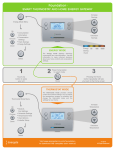
$ ENERGY DISPLAY
Rate of Electricity
The energy display shows
electricity consumption
and rate information. Use
this information to make
informed decisions about
your home comfort and
consumption settings.
Current Electricity Cost
(Rate x Current Use)
Current
Electricity Use
Energy
Saving
Event
1. Touch any
button to wake
your unit
Press Select
to Access:
Home
• Consumption
Information
2. Press Home
Select
button to switch
between Energy
and Temperature
Display
3. Press the
Home button
to exit or cancel
from the menu
• Mode & Fan
Settings
• Schedule
• Temperature Hold
• and more
Energy Event
in progress
Rate of electricity is
higher than base price
Press Select
THERMOSTAT DISPLAY
The thermostat display
provides climate control
and comfort settings.
You can adjust the
temperature, program
a schedule, and change
the thermostat mode and
fan settings for your
home.
Current Temperature
Fan Mode
Increase
Temperature
Decrease
Temperature
Thermostat Mode
Target Temperature
Visit www.energateinc.com/foundation
to download the complete user manual.
©2013 All Rights Reserved