1
Store System
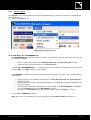
Stores the Current System to a System File.
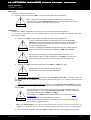
Click ‘‘Store System’’. In the new window browse for the desired directory location and keyboard the
System File name, click ‘‘SAVE’’: the ‘‘name.system’’ file will be saved into the chosen directory location.
Check for current System compatibility to file
Checks if a System stored in a System File is compatible (see the Glossary chapter 9) or not with the Current
System.
Click ‘‘Check for current System compatibility to file’’. In the new window browse for a System File
(‘‘*.system’’), click ‘‘OPEN’’: if both systems are compatible the ‘‘The loaded system is compatible to the
current system’’ message is displayed, in the opposite case a conflict list is displayed (see the Troubleshooting
section 7.3).
Exit
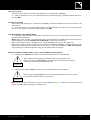
Click ‘‘Exit’’ to close the LA NETWORK MANAGER application software.
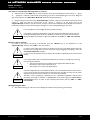
!
When working in the Online Mode all synchronized Physical Units will be disconnected,
but the Group and Unit parameters (see section 6.4) will remain active into each one.
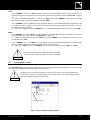
They can be retrieved later using the ‘‘Retrieve System From Network’’ function
(see section 6.6.3).
IMPORTANT
!
IMPORTANT
6.6.3
Consider a Physical Unit in the Standalone Mode. If some Group Parameters remain active
in it, they cannot be seen and accessed via the front panel user interface, and they are not
preset dependent (they will remain the same even if a new Preset is loaded).
Therefore, when recuperating a Physical Unit for a Standalone application that has been
previously used within a Network, L-ACOUSTICS recommends using the CLEAR GROUP
PARAMETERS function in order to clear all Group Parameters (see the ‘‘LA4’’ or ‘‘LA8’’
user manual).
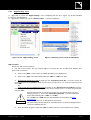
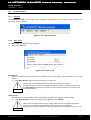
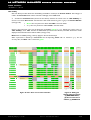
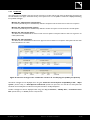
‘‘Network’’ menu
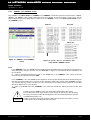
The ‘‘Network’’ menu provides System transfer management between the software and the Network.
Click on the ‘‘Network’’ key.
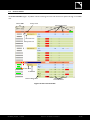
Figure 23: The ‘‘Network’’ menu
NETMAN_UM_E N_1.1.0.45
w w w .l-ac ous ti cs .c o m
31/42