1
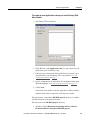
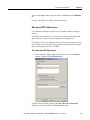
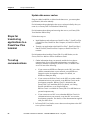
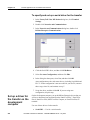
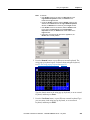
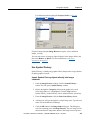
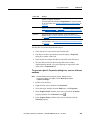
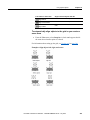
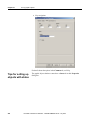
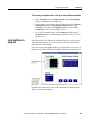
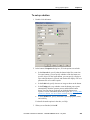
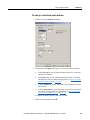
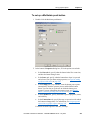
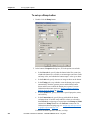
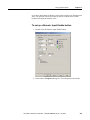
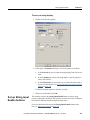
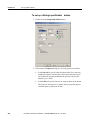
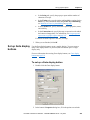
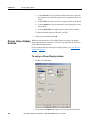
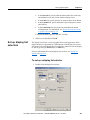
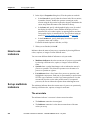
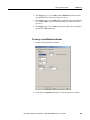
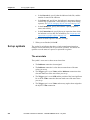
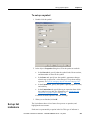
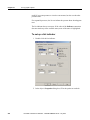
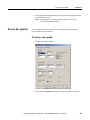
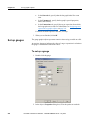
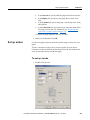
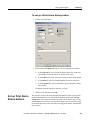
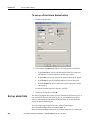
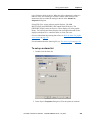
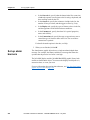
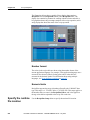
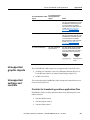
Set up graphic objects Chapter 21 To set up a symbol 1. Double-click the symbol. 2. In the object’s Properties dialog box, fill in the options on each tab: In the General tab, specify what the symbol looks like at run time, and the number of states for the symbol. In the States tab, specify how the symbol’s appearance changes when its tag or expression’s value changes. For tips about setting up states, see Tips for setting up objects with states on page 390. In the Common tab, specify the symbol’s spacial properties, name, and visibility. In the Connections tab, specify the tag or expression from which the symbol receives data. For information, see Assign tags and expressions to graphic objects on page 366. For details about the options in the tabs, see Help. 3. When you are finished, click OK. Set up list indicators The list indicator shows a list of states for a process or operation, and highlights the current state. Each state is represented by a caption in the list. This type of indicator is Rockwell Automation Publication - VIEWME-UM004K-EN-E – July 2015 431