1
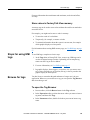
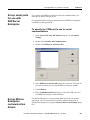
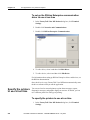
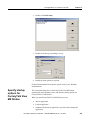
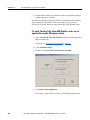
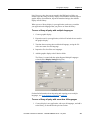
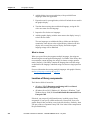
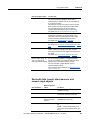
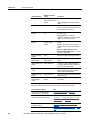
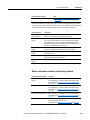
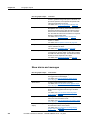
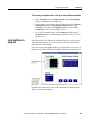
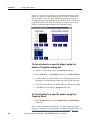
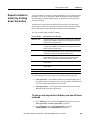
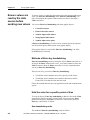
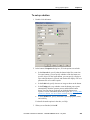
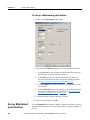
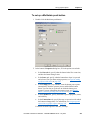
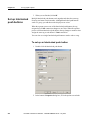
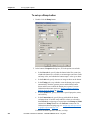
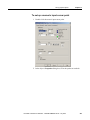
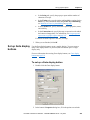
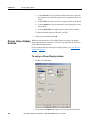
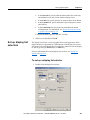
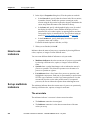
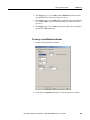
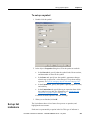
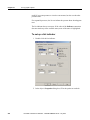
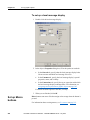
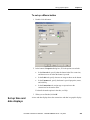
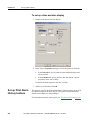
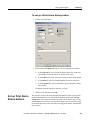
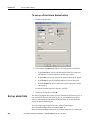
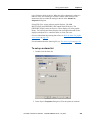
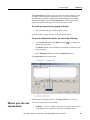
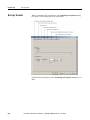
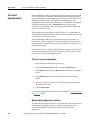
Set up global connections Chapter 8 To set up remote display changes 1. In the Graphics editor, in the Display Settings dialog box, every new display is assigned the number 1 by default. Therefore, to use remote display changes, you must assign a unique display number to each Replace and On Top display that you want to change remotely. For more information about graphic displays, see Use graphic displays on page 299. 2. In the Global Connections editor, assign a tag or an expression to the Remote Display Number connection. 3. If you assign a tag to the Remote Display Number connection, set up the data source to send a display’s number to the connection when you want the display to open. 4. If you assign an expression to the Remote Display Number connection, FactoryTalk View monitors the values of the tags used in the expression, and uses the expression result to determine which display to open. 5. If you assign a tag to the Close An On Top Display or Close all On TopDisplays connection, or both, set up the data source to send a display’s number to the connection when you want one or more displays to close. 6. If you assign an expression to the Close An On Top Display or Close all On Top Displays connections, FactoryTalk View monitors the values of the tags used in the expression, and uses the expression result to determine which display to close. Print displays Use these global connections in the Display tab of the Global Connections editor to monitor and control display printing: Display Print Active — notifies the data source that a display print is in progress. Remote Display Print — allows the data source to trigger a display print. The operator can also print the current display by pressing the display print button. For information about setting up this button, see Help. When the data source or the operator prints a display, everything on the screen is printed, including the current display, pop-up windows, and any visible background applications. If you plan to print graphic displays remotely, turn off the screen saver. If the screen saver is on when a remote display print is triggered, only the screen saver image is printed. Rockwell Automation Publication - VIEWME-UM004K-EN-E – July 2015 115