1
3. PROFILE AND REGISTRATION
2. INSTALLATION
Locate the CD supplied with your UT5000 and load it into your PC. Follow the on-screen
instructions to install CONNECT.
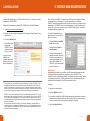
Alternatively, to download and install CorDEX CONNECT from the CorDEX website:
1. Go to http://connect.cordexinstruments.com
2. Register your contact details, Equipment Serial Number and License Number 1 using
the online form.
When you first run CONNECT, it accesses the CorDEX servers and retrieves the details
you entered when you downloaded it. You will be prompted to choose whether
CONNECT should use these details as the basis for your profile. If you choose not to use
these details or if CONNECT fails to retrieve the information, you will be prompted to fill
in the profile. Until you have provided a profile, CONNECT will prompt you to complete
this step each time the program is run.
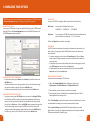
Your profile is used whenever you
generate a report. You can edit your
profile at any time by:
3. Click on the Submit button.
4. Follow the on-screen
prompts and
CONNECT should
automatically install
onto your system.2
In the event of any
difficulties, the
installation process will
prompt you to get help
from an administrator.
Choosing Profile > Create/Edit
profile from the menu.
Double-clicking on Profile in
Your Workspace.
In addition to the contact and
company information, the Profile
Details page also allows you to
select a logo to appear on your
reports. This is optional: the
CONNECT logo will be displayed
on reports by default.
REGISTRATION
Registration involves sending your details to CorDEX Instruments to enable a two-way
exchange of information regarding the equipment you add to CONNECT. This
information is simply notifications of calibration requirements and progress on any repairs
or maintenance carried out by CorDEX Instruments. None of the data collected by the
instruments will be transmitted to CorDEX Instruments at any time.
1. This is optional: if you enter a valid license number at this stage, your copy of CONNECT will be
licensed during installation. Without a valid licence number, the installation will be a 30-day trial
version of the software. At the end of that period you can still create reports and use all the other
features. However, you will not be able to import any more images. A trial version can be converted
to a full version at any time by providing a valid licence number through your profile details.
2. CONNECT uses Microsoft Framework, which is normally already present on most PCs. If it is not
already installed, the setup process will install it for you automatically. This is, however, a 207MB
file so it may take a while depending on your connection speed. Once installed, it will not need to
be installed again for any CorDEX Instruments software or any other software from other vendors
that use the Framework.
By using Microsoft Framework, CONNECT can normally be installed on computers where the
security settings are set to disable user installations. However, if your IT department has applied
security settings for user installation and you may need to contact your administrator to carry out
the Microsoft Framework installation.
2
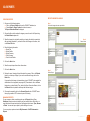
To register:
1. Complete your profile details.
2. Select the Register check box.
3. If you want to be notified by CorDEX Instruments regarding new products, services or
updates, select the adjacent check box. This will take the form of occasional emails.
You can opt out of this service at any time by clearing the check box.
4. Click on the Save Data button.
Ref. ID 4000, Rev. A
3