1
6. IMPORTING PICTURES
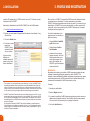
To import new images into a CONNECT album:
1. Choose one of the following options:
Click on the Image Management button on the CONNECT dashboard, or
Choose File > Load/Import from the main menu, or
Open the Images folder in Your Workspace and double-click on Albums.
The Select Album dialog box is displayed.
7. WORKING WITH ALBUMS
OPENING AN EXISTING ALBUM
To view images in an existing CONNECT album, open the Images folder in Your
Workspace and either double-click on the album's name or right click on it and select
Open from the context menu.
Alternatively, choose one of the following options:
Click on the Image Management button on the CONNECT dashboard, or
Choose File > Load/Import from the main menu
Then, in the Select Album dialog box, choose the required album from the Existing
Albums dropdown list. Album images are displayed as thumbnails for reviewing
purposes.
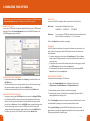
Use the toolbar buttons1 to view, edit or export images:
2. Click on the Import Pictures button.
3. If you want to add the pictures to an existing album, select it from the Existing
Albums dropdown list. Otherwise, enter the name of the new album in the New Album
Name text box.
Return to the main menu
Open the image for viewing
Copy the image to the clipboard
Edit the image, add annotations, etc
Export the image
Delete the image
Save image
View/edit previous image
View/edit next image
View/edit your equipment
View/edit your profile
View the open album
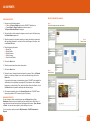
4. Choose from the following options:
Delete Original Images
Import in Report Mode
Add Date Stamp to Images
5. Click on the Select Pictures button. Using the standard Windows Open dialog box,
choose the pictures you want to import either directly from the camera or from a folder
on your computer.
6. Click on the Open button to continue. It may take a while to import your images. When
this process is complete, the album is displayed.
DELETING AN EXISTING ALBUM
To delete an existing CONNECT album, open the Images folder in Your Workspace, right
click on the album's name and select Delete from the context menu.
Confirm that you want to delete the album.
1. These functions (and the Zoom function) are also available by right-clicking on an image and
selecting the appropriate command from the context menu.
8
Ref. ID 4000, Rev. A
9