1
Tools
Coordinate Calculator
Using Calculator
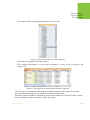
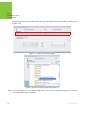
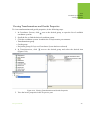
5. To set the desired geoid model, open the Preferred Geoid drop-down list and select a
geoid. For example, see Figure 6-9
Figure 6-9. Preferred Geoid drop-down list
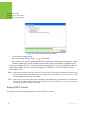
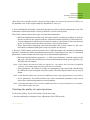
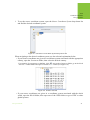
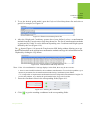
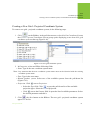
6. After the Height and Coordinate systems have been defined, select a transformation
method from the Transformation Path drop-down list. The list of transformation methods
is generated by Giodis. It can be different depending on a Coordinate and Height system
defined by the user (Figure 6-10).
The
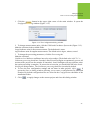
button (Figure 6-10) opens the Transformation XML dialog window allowing you to get
detailed information on the appropriate transformation methods and copy this information into the
Clipboard by clicking the Copy button.
Figure 6-10. Transformation Path drop-down list
Note: If the “No transformation” message displays in this field, there may be two reasons:
1. there is some insufficient data for the coordinate transformation. To resolve this problem, try to
input new parameters for the transformation model using Coordinate System Editor.
2. it is impossible to implement transformation between ellipsoidal and orthometric heights. To
resolve this problem, try to define the geoid model in the Preferred Geoid list.
7.
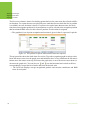
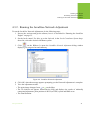
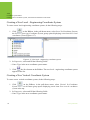
Enter the coordinate values in the corresponding fields (Figure 6-11.
Figure 6-11. Entering the coordinates
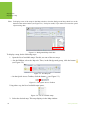
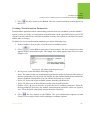
8. Click
www.javad.com
to get the resulting coordinates in the corresponding fields.
55