1
INTERFACE » MIXER
3
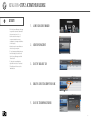
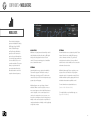
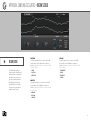
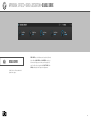
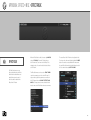
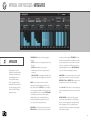
PART SETTINGS
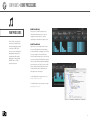
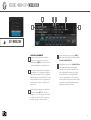
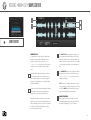
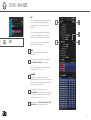
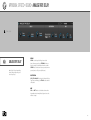
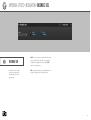
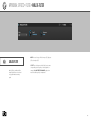
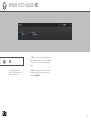
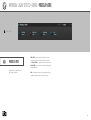
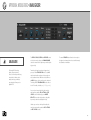
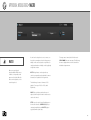
The Part settings displayed in the Mixer are the same as
in the Parts List, but displayed here in a familiar audio
mixer style. For more information on part settings, see
[Interface > Main > Parts].
5
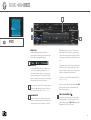
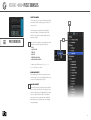
Double-clicking a part name opens the file browser. You
can also right-click on a part name for additional options
from the contextual menu:
• EMPTY PART
• LOAD PROGRAM
MIXER
4
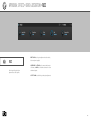
EFFECTS
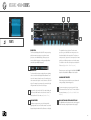
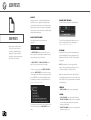
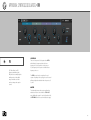
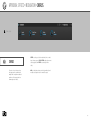
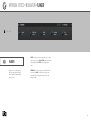
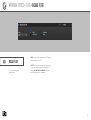
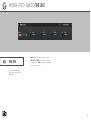
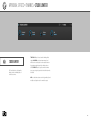
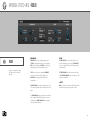
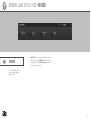
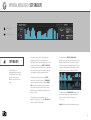
The Mixer is an intuitive view for managing audio effects.
To add an effect, press on the + button on any channel
strip and choose an effect from the menu. You can also
drag and drop effects presets from the Preset Browser
onto the + button.
After the effect is added, it will be selected and its
controls will be displayed in the effects editor above. The
effects module displayed here is the same as is shown in
the Effects Tab view.
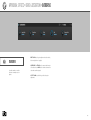
AUXES
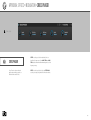
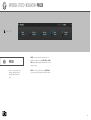
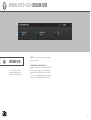
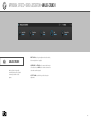
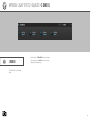
The Mixer also displays the four master aux effect
busses. Each part’s channel strip has sends for the aux
busses. Each send has an enable/bypass switch on the
left, and a pre/post-fader switch on the right. The default
is post-fader; toggle to switch to pre-fader.
The aux channel strips are similar to the part channel
strips, just without the part-specific settings. Note that
the output of the aux busses are always routed to the
Main Out.
6
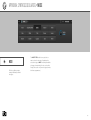
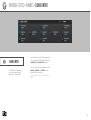
MASTER
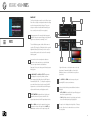
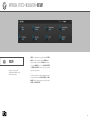
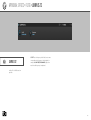
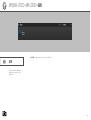
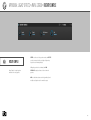
Lastly, the Mixer displays the Master channel strip. Effects
can be added to the Master output just as with parts and
auxes, and the master fader adjusts the Global Volume.
3
5
6
4
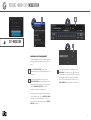
To replace an existing effect with a different one, press
and hold on the effect’s name and choose a replacement
from the menu. You can also drag and drop an effects
preset onto it from the Preset Browser.
Effects can be bypassed temporarily by pressing the
bypass button next to its name. Alternatively, you can
bypass by Shift-clicking the effect’s name, or with the
effect’s “power” button when the effect is selected and
displayed in the effects editor.
To remove an effect, press and hold on the effects name
and choose “Empty” from the menu. You can also use
the effect’s “X” button to remove it when the effect is
selected and displayed in the effects editor.
64