1
PREFERENCES
PREFERENCES
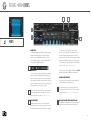
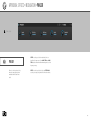
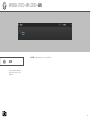
Falcon’s general settings are
configured in the Preferences
window. To open the Preferences,
choose Preferences from the menu
in the Toolbar.
GENERAL
STREAMING
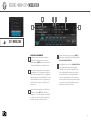
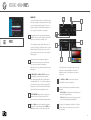
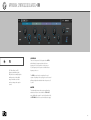
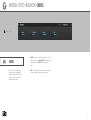
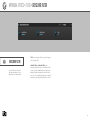
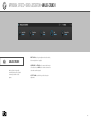
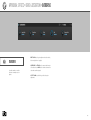
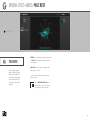
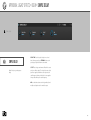
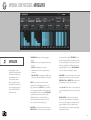
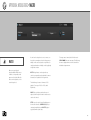
When you drag and drop samples into a program, by
default the sample will play back for as long as the
note is held. Enable the One Shot option for SAMPLE
DRAG’N’DROP MODE to instead import all samples as
one shot by default. To change an individual sample to
One Shot, see [Interface > Main > Sample Editor].
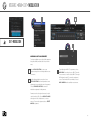
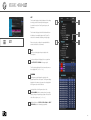
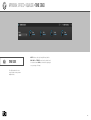
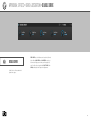
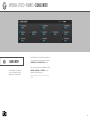
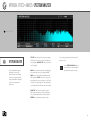
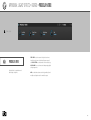
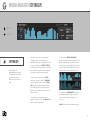
Rather than loading an entire sample into memory,
samples may be read (streamed) from disk as they
are played. This can improve overall performance by
balancing resources between your computer’s RAM
and its disk drives. That said, streaming performance is
directly affected by the speed of the disk, so the faster
the disk, the better.
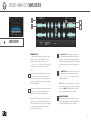
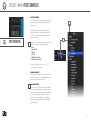
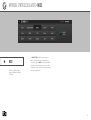
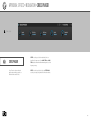
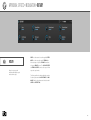
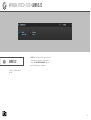
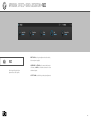
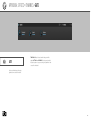
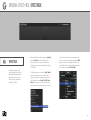
Each part displays a color in multiple places throughout
Falcon. Choosing Chromatic for PART COLOURING
SCHEME will assign each new part a random color;
choosing Grey will assign all parts the same shade of
grey.
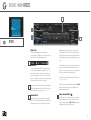
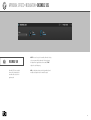
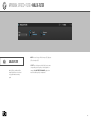
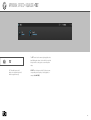
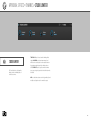
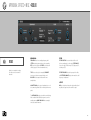
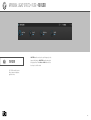
Falcon’s UI can be rendered with OpenGL, which can
help with overall performance by offloading some of
the processing needed to draw the UI from the CPU to
the GPU. To enable OpenGL rendering, enable the USE
OPENGL RENDERER checkbox. For best results when
using OpenGL rendering on Windows, make sure to
update to the latest drivers for your graphics card.
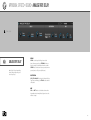
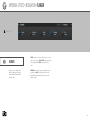
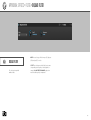
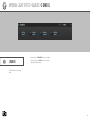
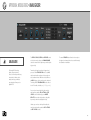
The default settings are optimized for most use cases.
To adjust the settings for your computer, choose the
appropriate Hard drive type and Cache size. To confirm
your changes, press the Apply button. To revert to the
default settings, press the Default button.
For details on enabling or disable streaming for individual
parts, see [Interface > Main > Edit > Program].
69