1
APP
Operating Basics
unique feature. They change their function as you move your finger across the slider and take effect once you
let go (for example, the slider for changing the currently-shown image section).
Note
The further you move your finger away from the slider, the more accurate the value becomes. Make sure
that your finger maintains contact with the touchscreen until you have completed your setting.
You can navigate the MOBOTIX App using gestures for the following functions:
• Zoom in/out of the displayed image by moving two fingers farther apart or closer together in the
image area
• Moving an enlardged image area with one finger
• Enable/disable full image display by tapping your finger on the image area
• Zoom in/out by double-tapping your finger inside the image area (the tapping spot becomes the new
image center)
• Change to a different live camera feed by swiping over the image area with two fingers (horizontal or vertical)
• Change between the Live/Player/Events views by swiping over the three dots above the image area with
one finger
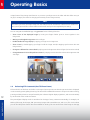
2.4 Performing PTZ Commands (Pan/Tilt/Zoom Frame)
PTZ stands for Pan/Tilt/Zoom and refers to a change of camera position and the image section that is displayed
on the screen by panning/tilting/zooming. The virtual PTZ on MOBOTIX cameras is unique in that the zooming,
panning and tilting functions are performed by the software‘s digital display algorithms, and not mechanically
www.mobotix.com
12
by an electrical motor inside the camera.
The preconfigured display mode is transferred to the App of every camera automatically, for example, via
MxEasy (full image, dual image, 180° panorama, images with concealed areas, and so on). This is also where
you can find the picture frames that are available for viewing. The size and format of the image on the App