1
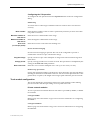
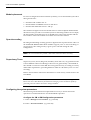
Module configuration 4-241
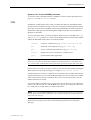
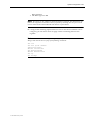
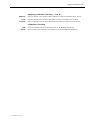
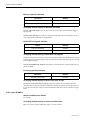
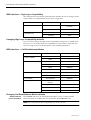
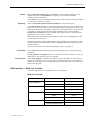
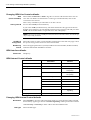
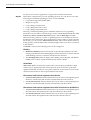
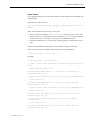
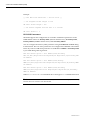
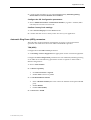
Add these parameters to the following section in USER.INI.
[[ User PPP Device Driver = Section Start ]]
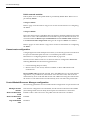
Example
[[ User PPP Device Driver = Section Start ]]
// Set the secondary DNS as 192.195.112.8 for PPP WAN Port 1
PPP Port Remote Option = 00,IPCP,Secondary DNS,131,Auto,Negotiation
Not Required,Not Negotiable,IP,008.112.195.192
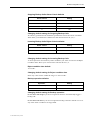
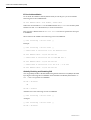
// Set the primary NBNS as 192.195.112.2 for PPP WAN Port 5
PPP Port Remote Option = 04,IPCP,Primary NBNS,130,Auto,Negotiation Not
Required,Not Negotiable,IP,002.112.195.192
// Set the secondary NBNS as 192.195.112.13 for PPP WAN Port 5
PPP Port Remote Option = 04,IPCP,Secondary NBNS,132,Auto,Negotiation
Not Required,Not Negotiable,IP,013.112.195.192
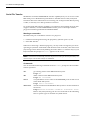
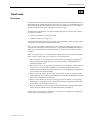
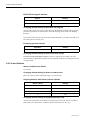
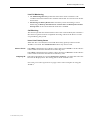
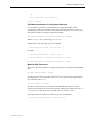
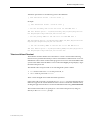
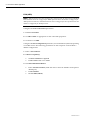
Telnet and Virtual Terminal
The FSM has a built in Telnet Server that allows various control and monitoring
functions to be performed remotely. It can be used with most Telnet clients. To access
FSM Telnet connect from a Telnet client program on a local or remote IP addressable
system to the FSM’s main IP address. Once connected a login: prompt displays. Type
the name and password.
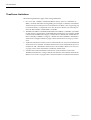
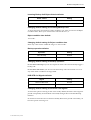
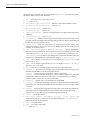
The default name and password for an unconfigured system is either:
• root for the name and Jtec for the password, or
• admin with no password <enter>.
These can be changed from within the Telnet operation.
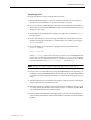
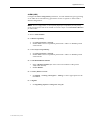
If the name and password is accepted, the FSM:telnet> prompt is displayed. The
FSM also supports the Virtual Terminal which can be accessed from OmniVision by
clicking the right mouse button over the selected FSM and choosing Virtual Terminal.
The Virtual Terminal does not prompt for a user name and password, and goes
directly to the FSM:telnet> prompt.
© 1993–2000 Jtec Pty Limited