1
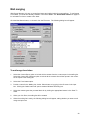
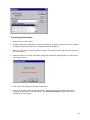
To mail merge mailing labels
1.
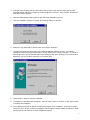
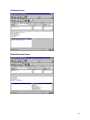
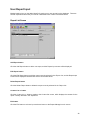
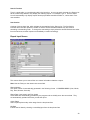
Select the Mailing Labels option.
2.
Select the type of label you want from the list of Available Label Reports.
3.
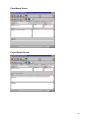
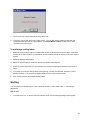
If you want to review the mailing labels before printing, click the Print Preview checkbox (if it isn’t
already checked). You can print the mailing labels from the Print Preview screen.
4.
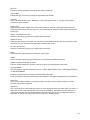
Click Print to print the mail merged mailing labels.
Viewing selected contacts
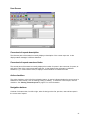
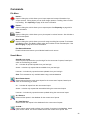
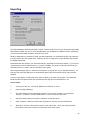
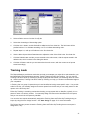
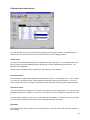
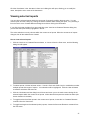
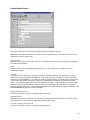
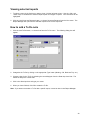
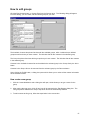
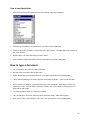
Click the LIST C ONTACTS button, or choose CONTACT L IST from the View menu. The following dialog will
appear.
This list includes all the contacts in the current lookup. You can select one or more contacts from this list
to view, thereby further refining the current lookup.
The Find function allows you to a specific contact within the current list, type in the company name and
click the Find button. You do not have to type in the entire company name, in fact, you can type only the
first few letters if you want. For example, type ‘john’ to go to the first contact whose company name
starts with the letters ‘John’, notice that it is not case sensitive.
1.
Scroll though the contacts in the list and select the one(s) that you want to view. To select a contact,
click the left-most column. Use the <Ctrl> and <Shift> keys in combination to select multiple contacts
and ranges of contacts. Your selections will be highlighted.
2.
Click the OK button. You will returned to the main screen with the selected contacts as the current
lookup.
56