1
CHAPTER 2. INTRODUCTION
14
DISPLAY
HOME
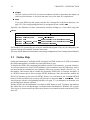
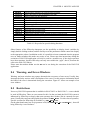
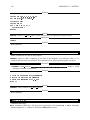
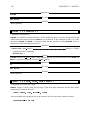
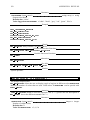
On Unix systems, HALCON uses this environment variable to determine the display on
which to open windows. It is used in the same way as for other X11 applications.
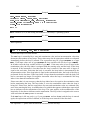
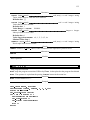
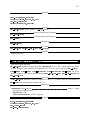
If you start HDevelop the system searches for a startup file in the home directory (see
page 125). The corresponding directory is designated by the variable HOME.
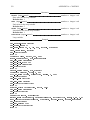
Typically, the definition of these environment variables belongs to a start shell script like
.cshrc.
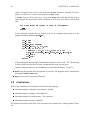
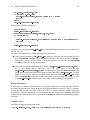
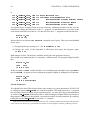
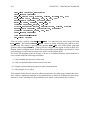
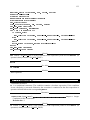
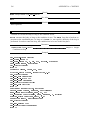
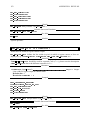
Examples for entries in .cshrc
setenv
setenv
setenv
setenv
setenv
HALCONROOT
ARCHITECTURE
PATH
LD_LIBRARY_PATH
HALCONIMAGES
/usr/local/halcon
hppa2.0-hp-hpux10
...:$HALCONROOT/bin/$ARCHITECTURE:...
...:$HALCONROOT/lib/$ARCHITECTURE:...
$HALCONROOT/images:.
On Windows NT systems they are set by the installation program. They may be changed by the
System Settings tool available from the Start menu.
You may obtain additional information concerning configuration in the Getting Started Manual.
2.3 Online Help
Online documentation is available in PDF and partly in HTML format. In a UNIX environment,
the full documentation is available in postscript format as well.
To display the HTML files containing information on HALCON operators, you need a browser.
It is not provided in the HALCON distribution, but nevertheless used by HDevelop. Such a
tool may already be installed on your computer. Otherwise you may obtain it for free, e.g., via
the Internet. One browser that is suitable for displaying HTML files is Netscape Navigator. It
is a WWW browser that is able to display HTML documents. Since the reference manual for
HALCON operators is also stored in HTML format, it is convenient to use a standard WWW
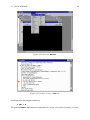
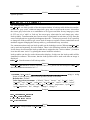
browser. In the tool HDevelop you may call Netscape via the menu Help . html-help. It will
start Netscape with the corresponding help files (see page 57). An alternative to Netscape is to
use the Microsoft Internet Explorer.
Besides HTML, the documentation is available in PDF format as well. To display the manuals,
the Adobe file viewer Acrobat Reader is included in the distribution for Windows NT systems.
This viewer is not activated from HDevelop, but has to be started from the start menu of Windows NT.