1
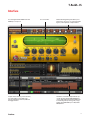
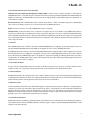
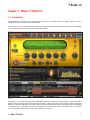
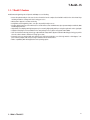
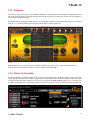
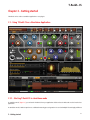
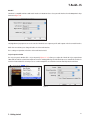
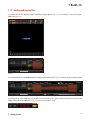
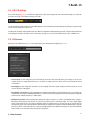
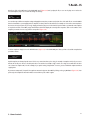
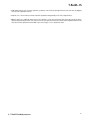
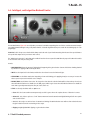
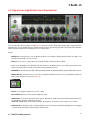
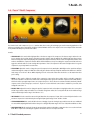
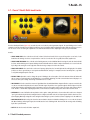
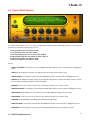
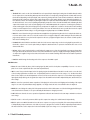
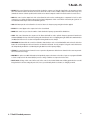
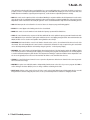
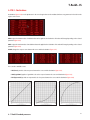
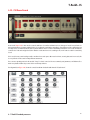
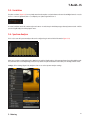
T-RackS CS ® 3.4 - A-B-C-D settings The A-B-C-D settings (figure 3.15) are 4 different configurations of any of the settings of the entire T-RackS chain and processors that can be saved and recalled on the fly while working on the audio. figure 3.15 To save and A-B-C-D settings simply click on the COPY TO button. The A-B-C-D buttons will start flashing and clicking on any of them will save the current settings in the choosen one. You will be able to quickly compare between up to four different configurations without pausing your audio, a function that is particularly useful during fine-tuning sonic details. Please note that these settings are not stored in the T-RackS CS preset files or DAW session. 3.5 - Preferences By clicking on the PREF button (figure 3.16) the T-RackS preferences window will be displayed (figure 3.17). figure 3.16 figure 3.17 • Lowest Latency: use this setting when you need T-RackS CS to have the shortest possible latency. This setting is to be used, for example, when you’re using T-RackS CS to process a real-time recording monitor mix. In this mode the total T-RackS CS latency is 132 samples. • Oversampling: use this setting when you want to use oversampling. This delivers higher quality to all T-RackS CS processors but increases latency to 1284 samples. • Oversampling + Linear Phase: use this setting when the maximum audio quality is needed and high latency is not a problem (for example when mastering). The LINEAR PHASE button on T-RackS CS Linear Phase Equalizer will only works with this setting ON. In this mode the T-RackS total latency is 19684 sample. • D/A Distortion Protection: when mastering audio material at really hot levels there is a chance that playback devices like CD or MP3 players will distort the audio because of overload in their D/A conversion and analog stages, even if the original digital master is distorted at all. These overloads are appearing “between” samples because of excessive overshoots or just because the D/A and analog stages cannot keep up with the required headroom. Enable this to allow the T-RackS Brickwall Limiter to keep this phenomenon under control and avoid most of these potentially bad distortions. NOTE: this setting has no effect if the Brickwall Limiter module is not used at the end of the audio processing chain. 3 - General controls 33