1
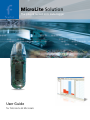
MicroLite Solution
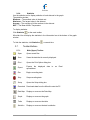
The plug & record mini data logger
User Guide
for MicroLite & MicroLab
MicroLite &
MicroLab Lite
User Guide
Third Edition
December 2008
© Fourier Systems Ltd.
Table of Contents
INTRODUCTION
1
CHAPTER 1 USING THE MICROLITE
2
1.1.
Overview
2
1.2.
Getting Started
2
1.3.
Reading the MicroLite Display
1.3.1.
Data Displays
2
3
1.4.
MicroLite Working Modes
4
1.5.
USB Port Connection
4
1.6.
The MicroLite Battery
1.6.1.
Battery Level
1.6.2.
Replacing the Battery
1.6.3.
Using the MicroLite Magnet
5
5
5
6
CHAPTER 2 MICROLAB LITE
8
2.1.
8
MicroLab Lite Software Overview
2.2.
Software Installation
2.2.1.
System Requirements
2.2.2.
Installation Procedure
8
8
8
2.3.
Getting Started
2.3.1.
Setting up the MicroLite
2.3.2.
Completing the Setup
2.3.3.
Starting Data Recording
2.3.4.
Stopping Data Recording
2.3.5.
Temperature Sensor Calibration
2.3.6.
Communication Setup
2.3.7.
Downloading Data
2.3.8.
Saving Data
10
10
12
12
13
13
14
14
15
2.4.
MicroLab Lite Basics
2.4.1.
Opening Files
2.4.2.
Displaying Properties
2.4.3.
Printing a Graph
2.4.4.
Printing a Table
15
15
15
15
15
2.5.
Viewing the Data
2.5.1.
Display Options
2.5.2.
The Cursor
2.5.3.
Graph Features
2.5.4.
Cropping the Data
16
16
17
17
19
2.5.5.
2.5.6.
2.5.7.
2.5.8.
2.5.9.
2.5.10.
2.5.11.
2.5.12.
Formatting the Graph
Displaying Alarm Levels
Changing the Temperature Units
Adding Annotations to the Graph
Exporting Data to Excel
Export File Settings
Copying the Graph as a Picture
Viewing more than one Data Set on the Graph
19
19
19
19
20
20
20
20
2.6.
Analysis Tools
2.6.1.
Setting the Analysis Tools Parameters
2.6.2.
Histogram
2.6.3.
Pasteurization
2.6.4.
Statistics
21
21
22
22
23
2.7.
Toolbar Buttons
2.7.1.
Main (Upper) Toolbar
2.7.2.
Graph (Lower) Toolbar
23
23
24
MICROLITE SPECIFICATIONS
25
MicroLite Hardware
25
MicroLab Lite Software
26
APPENDIX: FIGURES
27
Introduction
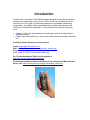
The MicroLite is a compact 16-bit USB data logger designed for accurate temperature
monitoring for a wide range of applications. Due to its low cost, the MicroLite can be
used as a One Trip Logger, for monitoring temperature of perishable goods during
transportation, for example. Other typical applications include warehousing of food,
monitoring of controlled environments i.e. in the pharmaceutical industry, and many
more.
•
•
Chapter 1 of this user guide details the operational procedures for MicroLite as a
standalone device.
Chapter 2 provides instruction on how to work with the MicroLite software, MicroLab
Lite.
Contacting Fourier Systems technical support:
e-mail: [email protected]
Web: www.fouriersystems.com/support/contact_support.php
Voice:
(USA) 1-866-771-6682 (Toll Free within USA only)
For Troubleshooting and FAQs visit the website at:
http://www.fouriersystems.com/support/faq/
To download updated versions of the MicroLab Lite software and MicroLite User
Guide, visit: www.fouriersystems.com/support/download_center.php.
Chapter 1
Using the MicroLite
1.1.
Overview
The MicroLite can be used as a standalone device to monitor temperature levels. The
MicroLite LCD screen continuously displays the current temperature recordings and the
maximum and minimum temperature readings. You can also define minimum and
maximum alarm levels for a specific data logging session, and the LCD screen will also
show any alarm levels that may have been breached as well as the duration of the
alarm.
The data stored by MicroLite can be easily downloaded to any computer for further
viewing and analysis using the MicroLab Lite software, and can also be exported to an
Excel spreadsheet.
1.2.
Getting Started
The MicroLite data logger you have purchased is shipped in a plastic box with a Quick
Start Guide printed on the rear of the box.
The box contains one MicroLite data logger and one small magnet accessory (located in
the placeholder on the MicroLite packaging). Read more about the purpose of this
magnet in section 1.6.3 on page 6.
In order to save battery life, MicroLite is shipped in Stop Mode. This means that before
you can start recording, you must first connect MicroLite to the PC and set it up with the
MicroLab Lite software (downloaded from the Fourier Systems website – see section
2.2: Software Installation on page 8).
To set up MicroLite with the MicroLab Lite software, refer to section 2.3.1: Setting up the
MicroLite on page 10. Once MicroLite receives the Setup command, it begins logging
the temperature data immediately or waits for a predefined time to start logging.
1.3.
Reading the MicroLite Display
The MicroLite has a 3-digit (with one decimal place) 7-segment LCD screen, which is
able to display the following information:
• The temperature reading currently recorded
• The lowest and highest temperature recorded to that point
• Low and/or high alarm level breach
• Duration of low and/or high alarm level breach
• Low battery warning
2
1.3.1.
Data Displays
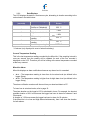
The LCD displays the data in a continuous cycle, alternating in duration according to the
order shown in the table below:
Time on Screen
(seconds)
8
Data Reading
2
Temperature (in
Celsius or Fahrenheit)
Low alarm duration *
2
High alarm duration *
2
Minimum temperature
reading
Maximum temperature
reading
Low battery warning *
2
2
Example of Reading on
Screen
25.5 ˚C
AL-L
1.55H
AL-H
1.05H
MIN
23.2 ˚C
MAX
30.1 ˚C
BATT LO
* If relevant (only displayed in event of alarm/low battery)
Current Temperature Reading
This is the last temperature reading recorded by the MicroLite. If the sampling interval is
once per second, then the reading will be updated for each of the four seconds it
displayed on the LCD. Therefore you will be looking at the actual temperature recorded
at that very moment.
MicroLite Alarm
MicroLite displays an alarm notification whenever any alarm level is exceeded.
•
AL-L – The temperature reading is lower than its low alarm level (as defined in the
•
logger Setup).
AL-H – The temperature reading is higher than its high alarm level (as defined in the
logger Setup).
The alarm notification remains until the next time you download data to a PC.
To learn how to set alarm levels, refer to page 10.
The alarm duration on the logger’s LCD is calculated in hours. For example, the shortest
possible duration of 0.01 hours means the logger has been in alarm for between 0 and
36 seconds.
A duration of 1.55 hours means the logger has been in alarm for 93 minutes.
If the MicroLite is in a Low and High alarm simultaneously, then it will show the duration
for both alarms.
3
Note: When the MicroLite is in Cyclic mode, the Low or High alarm level displayed
represents the lowest or highest readings recorded since the MicroLite starting logging
data, irrelevant of how many cycles the logger has recorded.
Minimum and Maximum Temperature Readings
The logger display automatically scrolls through the Min/Max temperature readings while
sampling.
These readings are simply the minimum and maximum temperature values recorded by
the MicroLite up until that point. If your logger has breached an alarm level, look at the
MIN and MAX readings to see the extent of the low or high alarm level breach.
These readings are constantly updated.
1.4.
MicroLite Working Modes
MicroLite is always set in one of five possible modes. These modes are all activated via
the MicroLab Lite software.
Stop
MicroLite is idle and is not recording.
When pressing Stop in the MicroLab Lite software, the logger LCD immediately ceases
to record data, instead displaying STOP and scrolling through the alarm durations (if
alarms were previously recorded).
Run
MicroLite is recording data. It will stop recording automatically when its memory has
reached full capacity (8,000 or 16,000 samples depending on the model).
Cyclic Run
Similar to Run mode, but MicroLite will continuously sample data, recording over old
data when the memory reaches its capacity, beginning with the earliest data recording.
Timer Run
MicroLite can be configured to start recording at a predetermined time. When MicroLite
is set for such a run, its status is set to Timer Run. The logger LCD displays tRUN.
Push to Run
MicroLite will only begin logging data when the user operates the logger’s reed switch
with the MicroLite magnet. The logger LCD displays PUSH. See section 1.6.3 on page 6
for more details.
1.5.
USB Port Connection
The MicroLite interfaces with the computer via any of its USB Host ports. In order to be
detected by the computer and by the MicroLab Lite software, the USB driver must first
4
be installed. USB driver installation is part of the software installation (see section 2.2:
Software Installation on page 8).
MicroLite LCD Status when Connected to USB
The USB connection status is always displayed on the MicroLite LCD when connected
or disconnected from a USB port.
The LCD flashes USB ON once when connected and flashes USB OFF once when
disconnected from the USB port.
The logger LED (located adjacent to the logger’s USB connector) also lights up green
when connected to the USB port.
If the MicroLite is in Run mode when connected to the USB port, the LCD will only
display the current temperature reading and will not scroll through the other readings.
If the MicroLite is in Stop mode when connected to the USB port, the LCD will display
STOP. If the logger had recorded an alarm during the previous data logging session,
then the LCD will also scroll through the alarm durations.
1.6.
The MicroLite Battery
The MicroLite runs on a standard 3V CR2032 lithium battery.
The battery maintains the MicroLite’s Real-Time Clock (RTC). The logger’s time/date
settings are synchronized with the PC when you perform a Setup. Removing the battery
will return the logger’s time/date settings to the default of 01 Jan 2004.
1.6.1.
Battery Level
The MicroLite battery level indication is provided in the MicroLab Lite software’s Setup
dialog (see page 10).
The MicroLite battery’s maximum lifespan is approximately two years. This long battery
life is achieved by the MicroLite putting itself to sleep between data recordings. While in
sleep mode, the data logger consumes a minimal amount of power.
MicroLite will wake up for a few micro-seconds whenever it has to record a data sample
or display new data on the LCD screen.
1.6.2.
Replacing the Battery
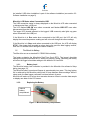
Internal
battery
compartment
Figure 1: MicroLite battery compartment
5
As shown in the figure above, the MicroLite internal lithium battery is located under a
removable plastic cover.
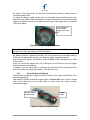
To replace the battery, simply use the groove in the plastic cover to twist the cover open,
and pull out the battery. When twisting the cover back into position, ensure that the small
ridge on the battery cover is in line with the similar ridge on the logger case, as indicated
in the figure below.
Ensure ridge on
cover and on
logger case are in
line
Figure 2: Closing battery compartment
Note: Be sure to twist the plastic cover properly back into a sealed position, to maintain
the MicroLite’s dust and waterproof IP68 compliancy.
As stated previously, replacing the battery will lose the MicroLite’s time/date settings.
These can be restored the next time you Setup the logger using MicroLab Lite.
After replacing the battery, the MicroLite LCD will display PUSH, indicating it is in Push
to Run mode.
Once you connect the logger to the PC’s USB port, you will be able to run the logger
without the need for the magnet.
In addition, you will still be able to download the data previously recorded onto the
MicroLite, before you removed the battery. This data is not lost.
1.6.3.
Using the MicroLite Magnet
The MicroLite includes the magnet accessory (stored in the magnet placeholder in the
MicroLite packaging).
This magnet is used to activate the logger when in Push to Run mode. There is a reed
relay on the MicroLite’s circuit board which is closed using the magnet, thereby
activating the logger.
Internal battery
compartment
Magnet
holder
Figure 3: MicroLite magnet holder
6
To activate the MicroLite when in Push to Run mode, place the magnet inside the small
holder next to the battery compartment for two seconds, and then remove the magnet.
The MicroLite LCD will immediately move to Run mode and live temperature data will be
displayed.
7
Chapter 2
MicroLab Lite
2.1.
MicroLab Lite Software Overview
The MicroLab Lite software was designed to allow for the programming of the desired
data recording specifications for MicroLite, to enable the downloading of recorded data
to a PC, and to store, view and analyze the data.
The Logger menu handles all communication between the PC and MicroLite, such as
programming the desired recording mode, starting or stopping data recording, as well as
downloading the data.
The View menu controls the various data display options. Data can be viewed in graph
format, in table format, or in both. The Data Map is a separate pane that displays a list of
the open data sets. It can also be used to quickly navigate through the data sets.
The Graph menu contains all the commands needed to format and edit the graph.
The most common tasks and commands are available as buttons on the main toolbar
and on the graph toolbar.
2.2.
Software Installation
2.2.1.
System Requirements
To work with MicroLab Lite your system should be configured with the following:
Software
• Windows 2000, Windows XP, Server 2003 and Vista
• Internet Explorer 5.0 or higher
Hardware
• Pentium 200 MHz or higher
• 32 MB RAM (64 MB recommended)
• 5 MB available disk space for the MicroLab Lite application
2.2.2.
Installation Procedure
Note: Do not connect the MicroLite to the computer until installation of software and
USB driver is complete.
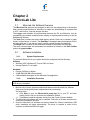
1. Browse to the Fourier Systems website and download the MicroLab Lite software.
(http://www.fouriersystems.com/support/download_center.php)
You may either:
a. Click Save to save the MicroLabLite_setup.exe file to your PC and then
double click the file icon to launch the Installation Wizard.
b. Click Run to install the software directly from the Fourier Systems website.
2. The MicroLab Lite software will first be installed. Follow the on-screen instructions to
continue the installation process.
3. Once the MicroLab Lite software has been installed the Silicon Laboratories USB
driver installation will begin automatically. The driver is required in order for the
computer to detect the MicroLite logger.
8
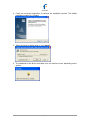
4. Follow the on-screen instructions to continue the installation process. The default
installation location is C:\SiLabs.
5. When the following dialog pops up, click Install.
6. The installation of the driver could take up to one minute or more, depending on the
system.
9
7. Once installed, click Finish to close the USB driver Install Wizard dialog.
8. The main MicroLab Lite InstallShield Wizard now resumes.
9. After a few more seconds, the installation process is completed. Click Finish.
10. Connect the MicroLite to a USB port on your PC. The PC will automatically detect
the MicroLite as new hardware. After a few seconds you will see a message stating
that the device is ready for use.
11. Double click the MicroLab Lite shortcut on your desktop
to launch the software.
If the MicroLite is connected to the PC the software will automatically detect it.
Troubleshooting
When connected to the PC USB port the MicroLite was not detected by the software.
Ensure that the USB driver was installed properly.
If it is, then the MicroLite LED will light green when connected to the USB.
Go to Control Panel > Add/Remove Programs (in WinXP), and check that the driver is
installed:
If not, you must rerun the MicroLite setup.exe to install the driver.
If the driver is installed, ensure that there is no other device sharing the USB com port
with the MicroLite.
2.3.
Getting Started
2.3.1.
Setting up the MicroLite
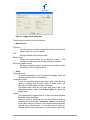
Use the Setup dialog box to view or change the MicroLite settings.
1. Connect MicroLite to the PC.
2. Click Setup
to open the Setup dialog box.
10
Figure 4: Logger Setup dialog box
The dialog box consists of two main sections:
• MicroLite info
Comment
Click the text box and type a name that will serve to identify the
specific MicroLite (e.g. its location).
S/N
Displays the MicroLite’s serial number.
Battery Level
Shows the current status of the MicroLite battery. If the
indicator is in the red zone the battery should be replaced.
MicroLite firmware version
Displays the firmware version and the memory capacity, either
8K (8,000) or 16K (16,000) samples.
• Setup
Temperature unit
To set the temperature unit in the MicroLite display, select the
option you want (Celsius or Fahrenheit).
Temperature alarm
Type in the desired Low and High alarm levels. If the MicroLite
records a reading that exceeds either of these levels, the
MicroLite’s LCD will display an alarm notification.
The default alarm levels are the lower and upper ends of the
temperature sensor range. Click Cancel Alarm to restore the
default levels.
Interval
This determines the logging interval, or the time interval between
successive data recordings.
The time format is hh:mm:ss. Set the time setting to select a
recording time interval from 1 second to 2 hours. For example,
to set a time interval of one hour, five minutes and thirty seconds,
click the hours (hh) and type 1 or use the arrows to select 01.
Click the minutes (mm) and type 5 or use the arrows, and finally,
11
click the seconds (ss) and type 30 or select 30 using the arrows.
Recording Time
Displays the total recording time according to the logging interval
selected.
Timer run
Select the Timer run check box if you want MicroLite to start
recording at a predetermined time. This option is convenient if
you are using several MicroLite at once and want them to all
begin logging at the same time.
Use the time and date selectors to set the start time.
Cyclic run
In Cyclic run mode, the MicroLite overwrites the old
measurements (starting with the oldest recorded data) once the
MicroLite’s memory is full. Click the Cyclic run check box to
operate in this mode.
If the check box is unselected, MicroLite will operate in Normal
run mode and will stop recording when the memory is full.
Push to run
In Push to run mode, the MicroLite will only start recording data
when you use the MicroLite magnet to close the reed relay on the
MicroLite’s circuit board, thereby causing the logger to start
recording data. This is convenient for when you wish to start
recording data soon (but not immediately) following setup, or at
an unspecified time.
2.3.2.
Completing the Setup
Click Send Setup to send the new settings to the MicroLite and begin recording. This
will complete the setup. Click Cancel if you do not wish to change the setup at this
stage.
Note: The Send Setup command erases all existing data in the MicroLite.
If you select Timer run mode, MicroLite will wait in standby mode, displaying tRUN. It
will begin recording at the specified time.
If you select Push to Run mode, MicroLite will also wait in standby mode, displaying
PUSH until the magnet is used to start the logger.
2.3.3.
Starting Data Recording
Click Run
every time you want to start a new recording. The Run command erases
all previous data in the MicroLite memory and begins recording.
Note: If you setup the MicroLite using the Setup command, it will automatically begin
recording, and you don’t have to click Run.
12
2.3.4.
Stopping Data Recording
to stop recording. In Stop mode, MicroLite keeps all recorded data but
Click Stop
does not record new data. Use this mode to save battery power.
2.3.5.
Temperature Sensor Calibration
A new MicroLite comes fully calibrated. After a long period of use however, you may
want to recalibrate the Temperature sensor.
The calibration is made directly to the MicroLite firmware i.e. the calibrated data is
displayed on the logger LCD, not just in the software following data download.
Calibration must be carried out while MicroLite is connected to the PC.
Calibration Password
To prevent accidental change of the calibration, the calibration procedure is protected by
a password.
The default password is: 1234.
To change the password:
1. Click Logger on the main menu, and then click Calibration.
2. Click Change Password to open the Change Password dialog box.
3. Enter the current password in the Current Password field.
4. Enter the new password in the New Password field.
5. Enter the new password a second time in the Confirm New Password field to
confirm your new password.
6. Click OK.
Note: The password must include at least 4 characters and is case sensitive.
Temperature Calibration
1. Connect the MicroLite to the PC.
2. Click Logger on the main menu, and then click Calibration.
3. Enter the calibration password, and then click OK.
4. The Calibration dialog will open.
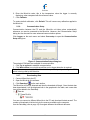
Figure 5: Calibration dialog box
5. Enter the Reference value: this is the temperature value you expect the logger to
display.
13
6. Enter the MicroLite value: this is the temperature value the logger is currently
displaying, when compared with the reference value.
7. Click Calibrate.
To restore default calibration, click Default. This will remove any calibration applied to
the MicroLite.
2.3.6.
Communication Setup
Communication between the PC and the MicroLite unit takes place automatically
whenever you send a command to the MicroLite. However, the Communication Setup
dialog box can be used for more advanced communication options.
Click Logger on the main menu and select Com setup to open the Communication
Setup dialog box:
Figure 6: Communication Setup dialog box
The selected COM ports are available for communication.
1. Click Try to connect to establish communication.
2. Click Work offline to work with saved files and no logger detection is required.
Note: You can speed up the MicroLite detection process by only selecting the COM
which is being used by the MicroLite.
2.3.7.
Downloading Data
1. Connect MicroLite to the PC.
2. Open the MicroLab Lite software.
on the main toolbar.
3. Click Download
The MicroLite will first be detected and then the download will begin. Once the data has
been downloaded, it will be displayed both in the graph and in the table, and a new data
icon will be added to the Data Map:
You can now connect a different MicroLite to the PC and download its data as well. The
number of downloads is limited only by the memory available on the computer.
Use the Data Map (refer to page 16) to navigate between the different data sets.
14
2.3.8.
Saving Data
To save the displayed data, click Save
on the main toolbar. The data currently
displayed by the graph will be saved in the MicroLite Data folder:
C:\Program Files\Fourier Systems\MicroLab Lite\MicroLite Data
The data file name consists of the MicroLite name (Comment, refer to page 11) and of
the time and date at which it was saved.
To save data in a different location or under a different name, use the Save as…
command from the File menu:
1. Select Save as… from the File menu.
2. Enter a new name in the File name box.
3. To save the data in a different folder, select a drive and/or folder from the Save in
dialog box.
4. Click Save.
If you’ve downloaded data from more than one MicroLite and you want to save all the
data sets, select Save all from the File menu.
Note: If you want to remove unwanted data before saving, apply the Crop tool (refer to
page 19).
2.4.
2.4.1.
MicroLab Lite Basics
Opening Files
1. Click Open
on the main toolbar.
2. To open a file that was saved in a different folder, select a drive and/or folder in the
Look in dialog box.
3. Double-click the file you want to open.
2.4.2.
Displaying Properties
You can change the way numbers and dates will be displayed on screen.
1. Click File on the main menu, and then click Display properties.
2. Under Decimal place settings, enter the number of decimal places you want to
display (enter a number between 0 and 4) for each sensor.
3. Under the Date format settings, select the desired format option.
4. Click OK.
2.4.3.
1.
2.
3.
4.
Printing a Graph
Click Print
on the main toolbar to open the Print Options dialog box.
Click the Graph option.
Click Print to open the Print dialog box.
Click OK.
2.4.4.
Printing a Table
The displayed data can also be printed as a table. The printed table will include data
from all MicroLite’s that are currently represented on the graph (to learn how to add or
remove data sets from the graph, refer to page 16) as well as the MicroLite name, serial
15
number and the alarm level setup. Data that exceeds any of the alarm levels will be
highlighted by arrows.
on the main toolbar to open the Print Options dialog box.
1. Click Print
2. Click the Table option.
3. If you want to print only part of the data, uncheck the check box and select the
desired time and date in the From and To boxes.
4. Click Print to open the Print dialog box and click OK.
2.5.
Viewing the Data
2.5.1.
Display Options
MicroLab Lite’s main window consists of three parts: the graph, the table and the Data
Map. You can display all three parts simultaneously (the default view) or any
combination of them.
Graph
Click Graph
to display or remove the graph. The graph displays the data sets
plotted vs. time.
In order to keep the graph clear and simple, only two Y-axes can be shown on the graph
simultaneously. If there are three curves in the graph, one of the Y-axes will be hidden.
To make this axis visible, select the corresponding plot with the cursor (refer to page 17).
You can identify the Y-axis by its color, which matches the plot color.
Table
Click Table
to display or remove the table.
The data in the table always matches the data that is currently displayed on the graph.
Data Map
Click Data Map
to display or remove the Data Map.
The Data Map is a separate window that displays the list of data sets that were
downloaded or opened in the current session. Use the Data Map to navigate through the
available plots and to keep track of the data that is displayed in the graph and/or table
windows.
When you double-click on a MicroLite icon in the Data Map, MicroLab Lite jumps to the
corresponding data and displays it in the graph and table windows. It also expands the
Data Map to show the Temperature sensor data set.
• A graph icon
indicates that the data set is currently being displayed. Double-click
on the icon to clear the data set from the display.
•
•
•
An empty icon
indicates that the data set is not being displayed. Double-click on
the icon to add the data set to the display.
To collapse the sensor list under an individual MicroLite, click the minus sign (-) next
to the MicroLite icon.
To expand the sensor list under an individual MicroLite, click the plus sign (+) next to
the MicroLite icon.
16
•
To remove an individual MicroLite from the Data Map, right-click on its icon, then
click Remove data.
•
To remove all data sets from the Data Map, right-click the Data Sets icon
click Remove all data.
, then
2.5.2.
The Cursor
Use the cursor to view individual data recording values, or to reveal a hidden Y-axis.
MicroLab Lite enables you to display up to two cursors simultaneously.
on
To display the first cursor, double-click on an individual data point or click Cursor
the graph toolbar. You can drag the cursor with the mouse to any other point on the plot,
or to another plot altogether.
The point coordinates of the selected data recording will appear in the status bar at the
bottom of the graph window.
To display a second cursor, double-click anywhere on the graph or click Second cursor
on the graph toolbar.
2.5.3.
Zooming
Graph Features
Click Zoom in
on the graph toolbar and drag the cursor diagonally to select the area
you want to magnify. Release the mouse button to zoom in to the selected area.
Click on the Zoom in button a second time to turn off the Zoom tool.
Autoscale
Click Autoscale
on the graph toolbar for the full data display.
Double-click on an individual axis to auto scale it separately.
Manual scaling
1. Click Graph properties
on the graph toolbar to open the Graph Properties
dialog box.
2. Select the Scale tab, and choose the axis you want to scale in the Select axis dropdown menu.
3. Unselect the Auto scale check box and enter the new values in the value fields.
4. In the time axis, you can either enter the time and date manually, or select it with the
up and down arrow buttons.
5. Click OK.
To restore auto scaling, click Autoscale
.
Default zooming
If you usually need to view a specific time frame (i.e. workday hours), use the Default
zooming tool. You can set the start and end time of the time span and then use it
whenever you open a file or download data from the MicroLite.
To set the default zoom:
1. Click Graph Properties
on the graph toolbar, and then click Set Default Zoom.
2. Enter the start and end times, then click Set.
17
To zoom to the default zoom:
1. Click Graph Properties
on the graph toolbar.
2. Check the Use default zoom check box and click OK.
Every file and every data recording you download will automatically open in the default
zoom as long as the Use default zoom check box remains selected.
To restore auto scaling, click Autoscale
.
The Stretch/Compress Axis Tool
Move the cursor onto one of graph axes. The cursor icon changes to a double arrow
symbol (↔), indicating that you can stretch or compress the axis scale. Drag the symbol
to the desired location. Repeat the procedure for the other axis, if necessary.
18
Panning
Use the pan tool after zooming any part of the graph that is outside the zoomed area.
To do so, click Pan
on the graph toolbar, then click anywhere on the graph and drag
the graph to view another area.
Click Pan a second time to turn off the Pan tool.
2.5.4.
Cropping the Data
Cropping enables you to trim the edges of a data set. Use it to remove unwanted data.
1. Zoom to the data range you want to keep.
2. Click Graph on the menu bar, and then click Crop.
All data outside the zoomed area will be permanently removed.
2.5.5.
Formatting the Graph
You can change a data line’s color, style or width. You can also add markers that
represent the data points on the graph and format their style and color.
The Y-axis color matches the corresponding plot’s color and will change accordingly.
The Time axis color can be changed separately:
on the graph toolbar to open the Graph Properties
1. Click Graph properties
dialog box.
2. Select the Lines tab, and then select the plot or axis you want to format in the Select
plot drop-down menu.
3. From here, you can format the line’s color, style and width, as well as the markers’
color and style. To remove the line or the marker, uncheck the corresponding visible
check box.
4. To restore the default formatting, click Restore default, and click OK.
2.5.6.
Displaying Alarm Levels
Click the Display Alarm Level icon on the main toolbar
to enable the Temperature alarm levels to be displayed on the
graph.
2.5.7.
Changing the Temperature Units
Click Toggle °C/°F button
to change the temperature scale from Fahrenheit to
Celsius and vice versa.
Note: To change the units in the MicroLite display, use the Setup dialog box.
2.5.8.
Adding Annotations to the Graph
MicroLab Lite allows you to add annotations to the graph. An annotation is always
attached to a specific data point.
To add an annotation:
1. Place the cursor on the point to which you want to add the annotation.
2. Click Add new annotation
on the graph toolbar
3. Type the annotation in the New annotation caption text box.
4. Click OK.
19
To move an annotation:
1. Click Move annotation
on the graph toolbar
2. Drag the annotation to any location on the graph you choose.
3. Click Move annotation a second time.
To edit an annotation:
1. Place the cursor on the point to which the annotation is attached.
2. Click Graph on the menu bar.
3. Click Edit annotation.
4. Edit the annotation in the text box.
5. Click OK.
To delete an annotation:
1. Place the cursor on the point to which the annotation is attached.
2. Click Graph on the menu bar.
3. Click Delete annotation.
To hide all annotations:
1. Click Graph on the menu bar.
2. Click Show annotations to uncheck it.
2.5.9.
Exporting Data to Excel
Click Export to Excel
to export the currently displayed data to an Excel
spreadsheet. You will be prompted to select the Save location of the file, and then a new
Excel workbook will be opened displaying the data along with the MicroLite info,
including the MicroLite name, serial number and alarm levels setup.
If Excel is not installed on the PC then the data will be exported to a CSV text file.
2.5.10.
Export File Settings
If MicroLab Lite fails to export the data properly i.e. all of the data is displayed in one row
of the worksheet, you can change the export file settings. This ensures that the data is
exported using comma separated values (CSV).
1. Click File on the main menu, then click Export file settings,
2. Select the Ignore regional settings check box.
3. Click OK.
2.5.11.
Copying the Graph as a Picture
You can copy the graph to the clipboard as a picture and then paste it into other
Windows programs, such as Word and PowerPoint:
1. On the Graph menu, click Copy graph.
2. Open the destination file.
3. In the destination file, right-click and select Paste.
2.5.12.
Viewing more than one Data Set on the Graph
MicroLab Lite lets you view more than one data set in Graph and Table view at the same
time, allowing you to compare the data from several data sets side by side.
20
Note: To use this feature the data sets must have been recorded using the same
sampling rate e.g. every 1 minute
There are two modes when using the Multi-graph feature:
Standard mode
The time scale of all data on the graph is the same. The time and date of data recorded
in the first data set included on the graph is used.
For example, if you have a graph whose data was recorded starting 10:00AM on August
11, then all additional data added to the graph will be displayed with the same recording
date.
The MicroLab Lite data table below shows all data in the graph having the same time
scale:
Figure 7: MicroLite data table
Plot sync mode
To display data on the graph using the data’s actual time scale i.e. the time and date
when the data was actually recorded, use the Plot sync feature. This will also shift all
data in the data table accordingly.
Once you’ve added the data to the graph, on the Graph menu, select Plot sync to
enable the feature. To return to Standard mode, unselect Plot sync.
Note: The time scale of all data is rounded to the same resolution as the time scale of
the original data on the graph.
2.6.
Analysis Tools
2.6.1.
Setting the Analysis Tools Parameters
1. Click Analysis on the menu bar, then click Set Functions’ Parameters to open a
dialog box:
21
Figure 8: Functions Parameters
2. Type in the desired parameters, and then click OK.
2.6.2.
Histogram
Use this tool to create a frequency distribution of the selected data set.
To create a histogram:
1. Use the cursor to select a plot on the graph.
2. Click Analysis on the main menu bar, and then click Histogram.
MicroLab Lite displays a histogram of the selected data and creates a new entry in the
Data Map.
Use the Data Map (refer to page 16) to hide the histogram or to return to the original
data sets.
You can modify the histogram to your needs. You can set the upper limits of the first bin
and the lower limit of the last bins, and refine the histogram by increasing the number of
bins.
To modify the histogram:
1. Click Analysis on the main menu, then click Histogram a second time to open a
dialog:
Figure 9: Histogram settings
2. Enter the desired values for the first bin, the bin width and last bin, and then click
OK.
You can repeat the process for further modification.
2.6.3.
Pasteurization
Use this tool to create and display an FO Pasteurization curve:
Click Analysis on the menu bar, and then click FO pasteurization.
22
2.6.4.
Statistics
Use the statistics tool to display statistics of each data set in the graph.
The statistics include:
Minimum – The smallest value in the data set
Maximum – The largest value in the data set
Average – The average of all the numbers in the data set
MKT – The Mean Kinetic Temperature
To display statistics:
Click Statistics
on the main toolbar.
MicroLab Lite will display the statistics in the information bar at the bottom of the graph
window.
To hide the statistics, click Statistics
2.7.
a second time.
Toolbar Buttons
2.7.1.
Main (Upper) Toolbar
Open
Opens saved files
Save
Saves the data that is currently displayed
Print…
Opens the Print Option dialog box
Export
Exports the
spreadsheet
Run
Begins recording data
Stop
Stops recording data
Setup
Opens the Setup dialog box
displayed
data
to
an
Excel
Download Downloads data from the MicroLite onto the PC
Data Map
Displays or removes the Data Map
Graph
Displays or removes the graph
Table
Displays or removes the table
Statistics
Displays or removes the data’s statistics
23
°C/°F
Displays the desired unit of temperature
Alarm
Displays or removes temperature alarm levels
from the graph
2.7.2.
Graph (Lower) Toolbar
Add
Adds new annotation to the graph
annotation
Move
Relocates the annotation on the graph
annotation
Zoom in
Activates the zoom tool
Pan
Activates the pan tool
Autoscale
Returns the graph to full view
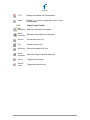
Graph
properties
Opens the Graph Properties dialog box
Cursor
Toggles the first cursor
Second
cursor
Toggles the second cursor
24
MicroLite Specifications
MicroLite Hardware
Models:
MICROLITE-8 - Temperature sensor; 8,000 sample memory
MICROLITE-16 - Temperature sensor; 16,000 sample memory
Internal Temperature sensor:
Range:
-40 ˚C to 80 ˚C
Resolution: A/D resolution:
16-bit, 0.1°C
Accuracy (all ranges): 0.3 ˚C
Response time: ~ 20 minutes
(Thermal conductor enabling fast response time)
Software calibration is possible
Outputs:
3-digit 7-segment LCD with decimal point
USB 2.0 interface
Memory Capacity:
8,000 samples or 16,000 samples, depending on MicroLite model
LCD Unit Icons:
˚C, ˚F, AL-H, AL-L, MIN, MAX
Power Supply:
Internal Lithium Battery: 3V, CR2032
Battery Life: Approximately two years
Sampling Rate:
User defined: From once every second to once every two hours
Dimensions:
11 x 3.9 x 2.6 cm
25
Weight:
45.5 g
Standards:
Water and dust proof IP68 standard compliance (Up to half and hour at half a meter
water depth)
CE and FCC standard compliance
MicroLab Lite Software
Software Features
•
•
•
•
•
•
•
•
•
•
•
Runs on Windows 2000/ME/XP/VISTA
Fast data download from the MicroLite
Graphic visualization of the MicroLite data
Data displayed in graphs and tables
Data export to EXCEL
Graphic analysis tools such as Markers, Zoom
Setup windows, for setting the MicroLite unit name, sampling rate and alarm level
Sampling rate: Once every second to once every two hours
MicroLite sensor calibration
Display of MicroLite battery level
Visual alarm levels on the graph and table
System Requirements
Software
Windows 2000 or later
Internet Explorer 4.0 or later
Hardware
Pentium 200 MHz or higher
32 MB RAM (64 MB recommended)
5 MB available disk space for the MicroLab Lite application
26
Appendix: Figures
FIGURE 1: MICROLITE BATTERY COMPARTMENT
FIGURE 2: CLOSING BATTERY COMPARTMENT
FIGURE 3: MICROLITE MAGNET HOLDER
FIGURE 4: LOGGER SETUP DIALOG BOX
FIGURE 5: CALIBRATION DIALOG BOX
FIGURE 6: COMMUNICATION SETUP DIALOG BOX
FIGURE 7: MICROLITE DATA TABLE
FIGURE 8: FUNCTIONS PARAMETERS
FIGURE 9: HISTOGRAM SETTINGS
27
5
6
6
11
13
14
21
22
22