1
Product Introduction
2.4.4.2
Hardware and Software (AS)
Hardware Requirements for Automation System
Route Control supports CPU types 416 and 417:
•
CPU 416-3 (caution: smaller quantity framework, approximately 30 routes)
•
CPU 417-4
•
CPU 417-4H (new in V6.1)
Note
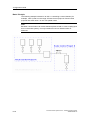
Two CPUs/two CPs on one rack is not supported.
Software Requirements for Automation System
Route Control requires CPU firmware Version 3.1.0:
•
CPU 416-3
•
CPU 417-4
•
CPU 417-4H
2.4.4.3
Dependence on Other Components
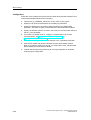
All components required to operate Route Control are installed during the PCS 7
setup.
Route Control Server
•
SIMATIC Net (server-AS connection)
•
ACE (Application Communication Environment, connects Route Control server
to WinCC message server)
•
Redundancy Integration
•
PCS 7 Common Classes classes (display of date / time etc.)
•
SIMATIC Logon (optional)
•
Acrobat Reader (for user manual)
Route Control Library
2-14
•
STEP 7 / CFC
•
Acrobat Reader (for online manual)
Process Control System PCS 7 - SIMATIC Route Control
A5E00343836-02