1
Getting Started
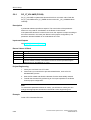
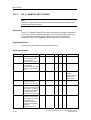
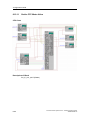
3.3.8
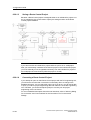
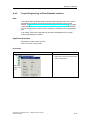
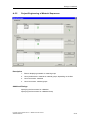
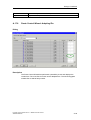
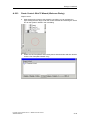
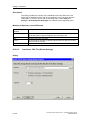
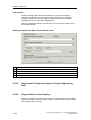
Installing a New Route Control Library
User Task
Your computer already has a project engineering environment for an S7 project
and the Route Control project installed. Now you would like to install a more recent
version of the Route Control library and update your project with the latest blocks.
Solution
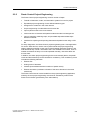
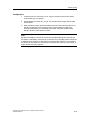
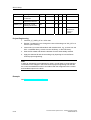
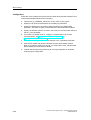
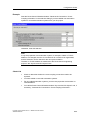
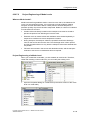
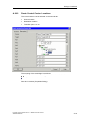
1. Install the new Route Control library
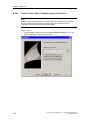
2. From the "System-Blocks\Blocks" program folder in the Route Control library,
copy the blocks that have been changed to your own program folder. To
perform this procedure, refer to the readme file provided.
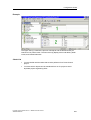
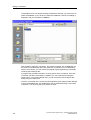
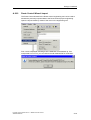
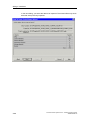
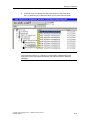
3. Perform a type import for Route Control blocks in CFC.
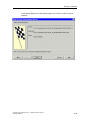
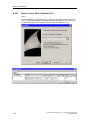
4. Now compile and download the charts.
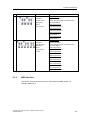
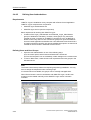
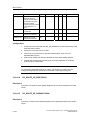
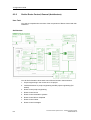
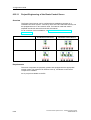
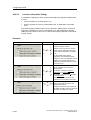
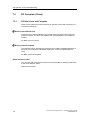
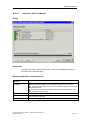
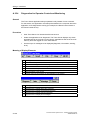
Example
---
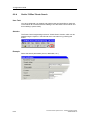
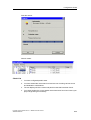
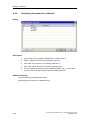
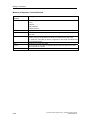
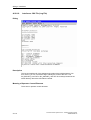
Check List
---
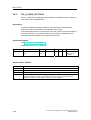
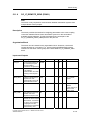
3.3.9
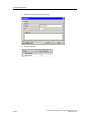
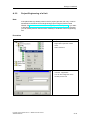
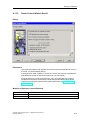
Copying RC_IF_ROUTE Route Blocks
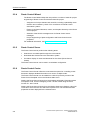
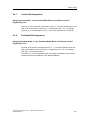
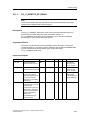
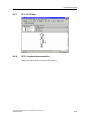
If you copy charts to a CFC that contain blocks of type RC_IF_ROUTE (FB800) for
which a route ID has already been assigned, you must manually set the input ID in
the copy of the block to 0 in the copied chart. Otherwise, problems can result in the
RC wizard if it detects the same route ID more than once, leaves the ID in the
copied block, and tries to automatically correct the ID in the original block (possibly
changing a correctly assigned route ID!).
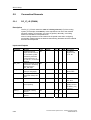
3.3.10
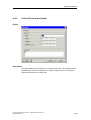
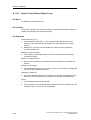
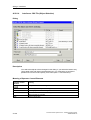
Reserved Ranges/Block Number Limit
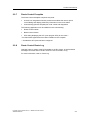
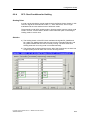
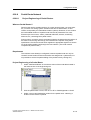
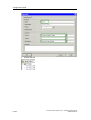
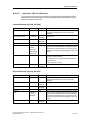
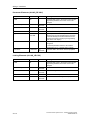
In the CFC editor, set the reserved ranges using the "Options / Settings / Compile
and Download" menu command. See CFC - Adapting the Block Ranges. It is
important that the upper limit setting be increased (DB to 899, FC to 899). You
should also enter this setting globally in your master data library.
Process Control System PCS 7 - SIMATIC Route Control
A5E00343836-02
3-11