1
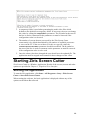
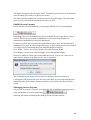
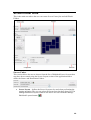
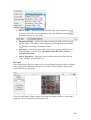
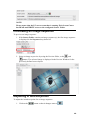
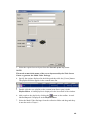
6. When the watch folder is added to the Watch Folders list, a process folder is
created in the configured Source Folder. When an image sequence is copied
into the Source Folder it is moved into the process folder before it is
processed.
Making use of a Watch Folder
To make use of the Watch Folder:
1. Copy the required image sequence into the specified Source Folder; see
Chapter 5: Image Sequences for details on how to name an image sequence.
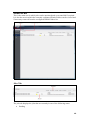
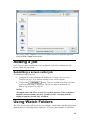
2. When the image sequence is detected a job is added to the Jobs List. The job
can then be monitored, see Monitoring progress on page 64.
3. The image sequence is then moved into a process folder from where the job is
processed.
NOTE:
The images sequences are NOT automatically deleted from the process folder
when the job is completed. The user must manually delete the images if
required.
NOTE:
All output videos MUST be at least 2 seconds in duration. If the image
sequence in the watch folder does not include at least 2 seconds of video the
job will be failed.
Monitoring progress
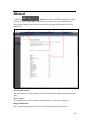
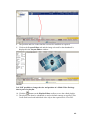
The Jobs window can be used to monitor the progress of the Ziris Screen Cutter jobs.
Monitoring the progress of a job
To monitor the progress of a job:
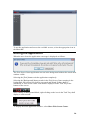
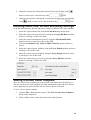
1. Ensure that the Jobs window is displayed by clicking the Jobs icon in the
sidebar.
2. The jobs shall be displayed according to the current filter settings. Use the job
filter settings to change which jobs are displayed.
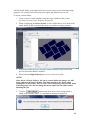
3. Jobs can be removed manually from the list using the
button.
64