1
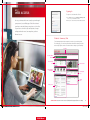
Web Access
Security
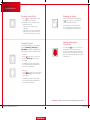
Managing Security Zones
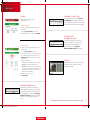
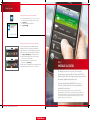
Indicates the overall status of your
security system.
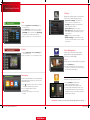
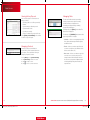
To manage Security zones, select [Security >
Security Zones] on the toolbar. From this screen
you can modify the names of the zones used by
the Subscriber Portal and turn zones Off and On.
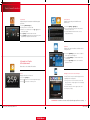
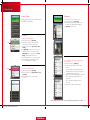
To disarm the system:
1.Click the Security Status header when it is in the
Armed state.
Or select [Security > Disarm] on the toolbar.
2.Enter your 4-digit access code, and click [Disarm].
Setting Up Your
Emergency Contacts
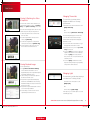
To arm the system:
1.Click the Security Status header when it is in the
Disarmed state.
Or select [Security > Arm] on the toolbar.
2.If any security zones are currently faulted, preventing
the system from being armed, you must click the
[Turn Zone Off] button for that zone before arming
the system.
3.Select the arming mode.
• Arm Stay — There are still people on the premises.
• Arm Away — Everyone is leaving the house.
• A rm Night — Everyone is going to bed. This mode
works the same as Arm Stay except that there is no
entry delay period. If an entry/exit zone is opened,
an alarm sounds immediately.
4.Enter your 4-digit access code.
5.Click [Arm Now].
The Emergency Dispatch contacts are the
people contacted by a call center when an
alarm is tripped. To manage Emergency
Dispatch contacts, select [Security >
Emergency Dispatch Setup] on the toolbar.
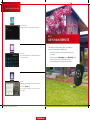
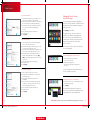
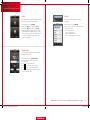
Cameras
Displays live video and enables you to capture
still pictures or video clips from cameras
installed in your home.
Managing Keypad Codes
Keypad codes are used to arm or disarm the
system. Multiple keypad codes can be assigned
to track who enters and leaves the premises. To
manage keypad access codes, select [Security >
Keypad Access Codes] on the toolbar and add
a new access code or modify current access
codes.
questions? customer.comcast.com/help-and-support/home-security
15
CST345_XHome_FOA_Manual_BR_EM.indd 15-16
16
1/24/13 5:35 PM
XHOME Manual