1
User's manual MioMap 2.0
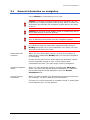
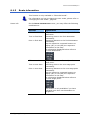
This function is only available in "Extended mode".
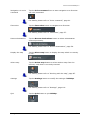
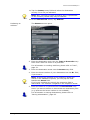
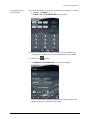
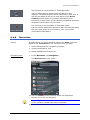
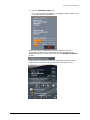
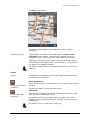
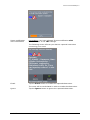
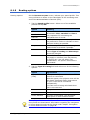
Tap the Add button to add the selected place to your
itinerary. The selected point will be marked by a little flag. It
will also be added to the list of route points of the ROUTE
PLANNING screen where it figures as destination point.
Using this function while you are already navigating causes an
immediate recalculation of your route.
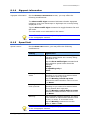
This function is only available in "Extended mode".
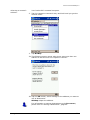
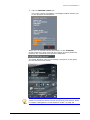
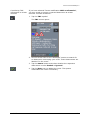
Tap the Interim destination button to make the selected point
the next stage point of your itinerary. Your route will be
recalculated immediately.
5.4.6
Favourites
Survey
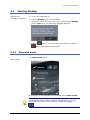
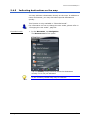
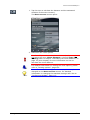
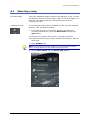
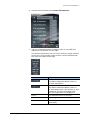
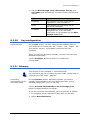
All destinations you have saved by tapping the Save button are
listed on the FAVOURITES screen. On this screen you may:
Ù select destinations for navigation purposes,
Ù rename destinations, and
Ù delete destinations from the list.
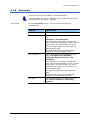
Extended mode
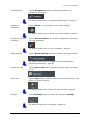
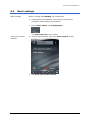
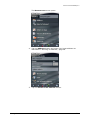
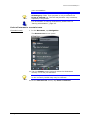
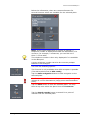
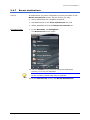
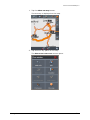
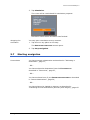
1. In the MAIN MENU, tap Navigation.
The DESTINATION screen opens.
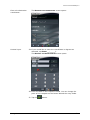
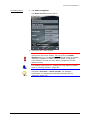
1a Tap the Country entry field and select the destination
country if it is not yet indicated.
Note: Only countries of which at least a part is represented
on the currently loaded map may be selected.
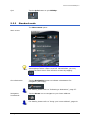
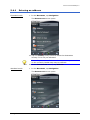
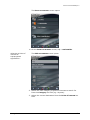
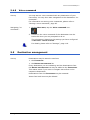
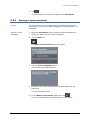
1b On the DESTINATION screen, tap Favourites.
Navigation
- 57 -