1
Synchronization
What is synchronization?
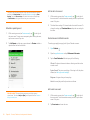
You can also set up the Messaging application to work with an online
instant messaging (IM) account (see Set up an instant messaging (IM)
account), and the Photos application to work with an online pictures
account such as Facebook or Photobucket (see Set up an online pictures
account on your phone).
You can set up a relationship to wirelessly sync data including contacts,
calendar events, and email with selected online accounts—for example,
Google or Exchange (sometimes called EAS—check to see if your company
supports this). You must first create an online account with an online
account provider before you can set it up on your phone.
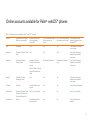
See Online accounts available for Palm® webOS™ phones for the current list
of default online accounts that synchronize your info and those that do a
one-way transfer of info either from the web to your phone, or from your
phone to the web.
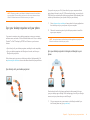
Sync means that if you enter, change, or delete information in one location,
the change automatically shows up in the other location. So if you enter a
Google contact in the Contacts application on your phone, the contact
appears in your online Google contacts—no need to enter it twice.
NOTE If you are setting up your phone for the first time and uploading a large
number of contacts or calendar events to an online account from your phone, you
may not see all your data in the account online right away. Some online account
providers such as Google set limits on the amount of data that a user can import in
a given time frame. Also, if you have many years’ worth of data or thousands of
entries in an online account, you may want to review the data and reduce the
number of entries before setting up the account on your phone. Filling your phone
memory with a large number of account entries can affect performance.
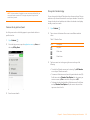
How do I set up synchronization with an online account?
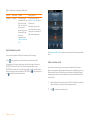
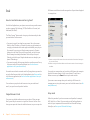
You can set up online account synchronization in the Accounts app, or in
individual apps on your phone:
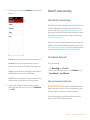
The Accounts app: Setting up an online account in the Accounts app lets
you specify the apps that should download data from that account. So, for
example, you could set up your Google account to download contacts and
email info, but not calendar events. See Manage online accounts for details.
Individual applications: The first time you open Email, Contacts, or
Calendar, you are given the option to enter settings for one or more online
accounts (see Set up email, Use Contacts for the first time, or Use Calendar
for the first time). For any account, you specify the apps that should
download data from that account. So, for example, you could set up your
Google account to download contacts and email info, but not calendar
events.
You can add additional accounts at any time using the preferences in any of
these applications (see Set email preferences, Customize Contacts, or
Customize Calendar).
228
Chapter 14 : Troubleshooting
I don’t want to sync calendar or contact information with my
online account—just email
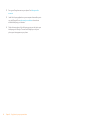
For most online account providers that sync with more than one app—for
example, Google—if you do not want to sync an application with that
provider’s online account, you can remove that application from the account
using the Accounts application. The online account continues to sync with
any other related applications.
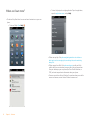
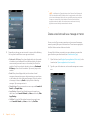
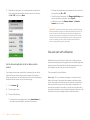
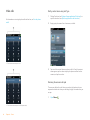
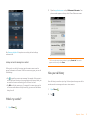
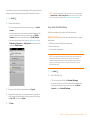
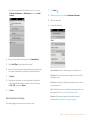
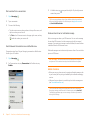
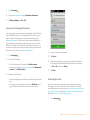
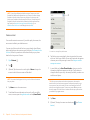
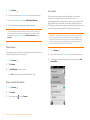
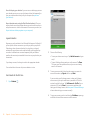
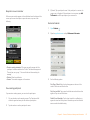
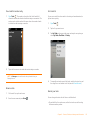
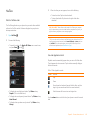
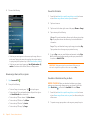
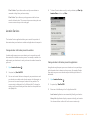
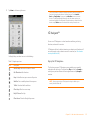
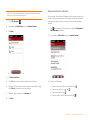
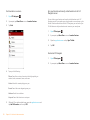
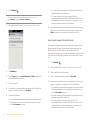
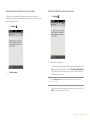
1
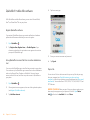
Open Accounts
.
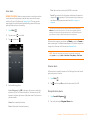
2
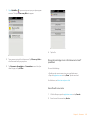
Tap the account name.
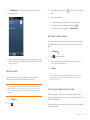
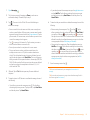
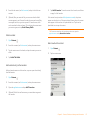
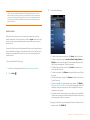
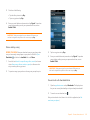
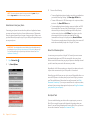
3
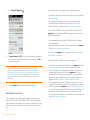
To change which applications are associated with the account: For
each app listed, tap On or Off.
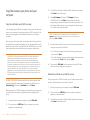
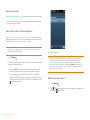
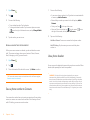
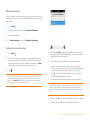
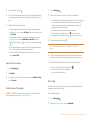
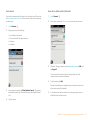
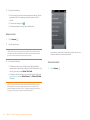
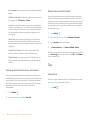
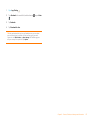
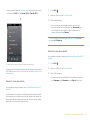
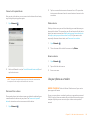
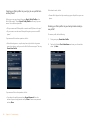
You can also remove an application from online account sync from within
the application itself: