1
Contents
1 Introduction................................................................................................. 1
2 Requirements.............................................................................................. 1
2.1 Hardware................................................................................................. 1
2.2 Software .................................................................................................. 1
2.3 Complementary Software........................................................................ 1
3 Installation................................................................................................... 2
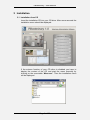
3.1 Installation from CD................................................................................. 2
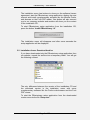
3.2 Installation from a Download Archive ...................................................... 3
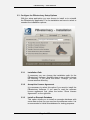
3.3 Configure the PBveterinary Setup Options.............................................. 4
3.3.1 Installation Path.............................................................................. 4
3.3.2 Accept the License Agreement....................................................... 4
3.3.3 Install an Example Database.......................................................... 4
3.3.4 Install an Empty Database.............................................................. 5
3.3.5 Install a Shortcut on the Desktop.................................................... 5
3.3.6 Start PBveterinary after Installation ................................................ 5
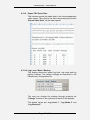
3.3.7 Show the PBveterinary Manual ...................................................... 5
3.4 Starting the Installation............................................................................ 6
4 Application Usage ...................................................................................... 7
4.1 Starting the PBveterinary Application ...................................................... 7
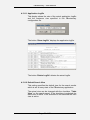
4.1.1 The Application Login ..................................................................... 7
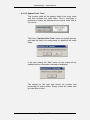
4.1.2 The News Update........................................................................... 8
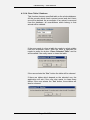
4.1.3 Changing the Default Password ..................................................... 9
4.2 The PBveterinary User Interface ........................................................... 11
4.2.1 Application Title / Area 1 - Blue .................................................... 12
4.2.2 Consultation Timer / Area 2 - Purple ............................................ 12
4.2.3 Navigation Bar / Area 3 - Green ................................................... 12
4.2.4 Panel Selector / Area 4 - Red....................................................... 15
4.2.5 Panel Information / Area 5 - Orange............................................. 15
4.2.6 Bottom Bar / Area 6 - Yellow ........................................................ 16
4.3 The Home Panel ................................................................................... 18
4.3.1 Company Information Area........................................................... 18
4.3.2 Database Overview ...................................................................... 19