
1
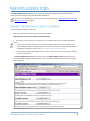
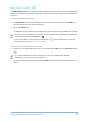
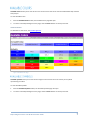
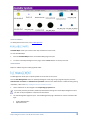
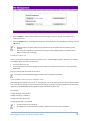
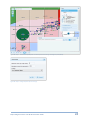
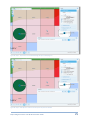
Figure 6. File Management page. 3. Click the Browse… button next to section for the file to type you wish to upload and navigate to the location of the file. 4. Click the Upload button. A message box will appear confirming the file was uploaded successfully, click the OK button. Map Intelligence accepts symbols only in gif format to be compatible with the underlying map provider. You can view the Symbols or Color files by clicking on the Available Symbols or Available Colors buttons on the main Tools page. COLOR FILE STRUCTURE Colors can be also be added to the server using files in the “…\mapIntelligence\colors” directory. For example the “default.colour” file shows the structure: the name of the color set the unique names for the colors with their values either as hexadecimal constants or comma separated RGB values. New color files should also follow this structure. You need to re-start the Map Intelligence server for the changes to take effect. USING SYMBOLS WITH THE POINT GRADIENT TOOL When adding new Symbols to the server, an average pixel color is also allocated for use with the Point Gradient tool. If you wish to change the color that has been allocated, you need to change the RGB color for the unique image file in the WEB-INF/properties/gradient.image-conversion.properties file. For example: triangle-white.gif = 255,255,255 triangle-orange.gif = 218,156,9 triangle-purple.gif = 106,74,151 triangle-lightblue.gif = 173,215,243 Symbol names are case sensitive. If no RGB color is associated with an image, a default color will be used, usually black. Map Intelligence Server Tools & Administration Guide 9
















![ArcMap [v10.0- v.10.2] User manual](http://vs1.manualzilla.com/store/data/005724954_1-1f5d2da94c774511c91b8b97dbbbcd93-150x150.png)
![Intergraph Geomedia [6.1-2013] User manual](http://vs1.manualzilla.com/store/data/005689587_1-58c82d14f3ba8ebe92b5c45af00d079c-150x150.png)