1
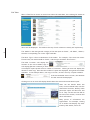
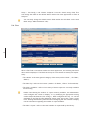
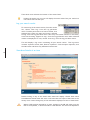
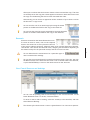
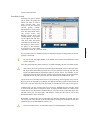
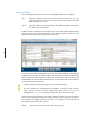
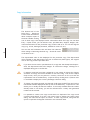
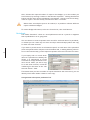
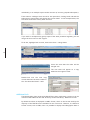
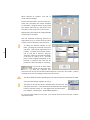
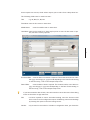
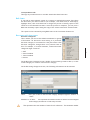
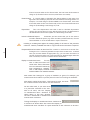
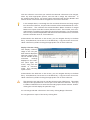
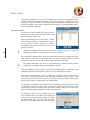
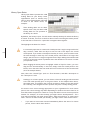
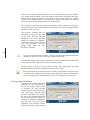
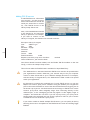
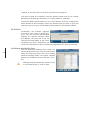
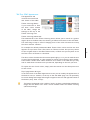
The resulting list contains the individual copies that were found by your search.
You can enter other search criteria if required. For example, enter a date in the
purchase date field to find any copies accessioned on a given date. You can search a
date range by entering the two dates separated by two dots. For example,
25/8/2011..28/8/2011 will find all records accessioned between these two dates
(inclusive).
Printing Barcode Labels
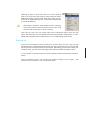
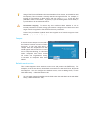
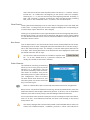
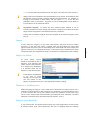
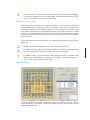
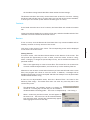
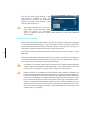
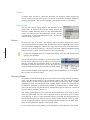
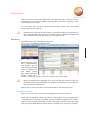
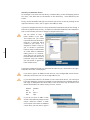
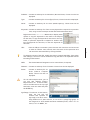
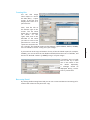
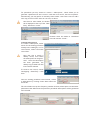
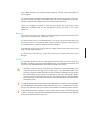
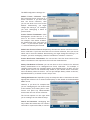
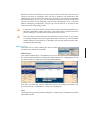
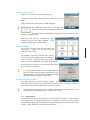
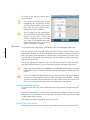
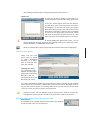
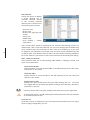
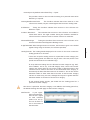
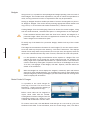
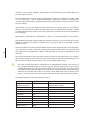
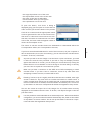
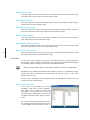
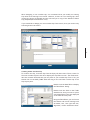
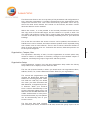
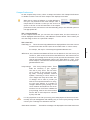
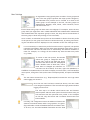
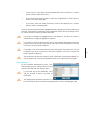
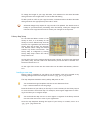
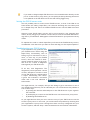
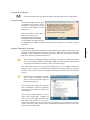
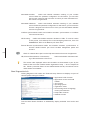
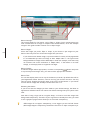
To print barcode labels for these copies, click Print Barcodes. You will be prompted
to select 24, 27, 30 or 65 labels per page. Make your selection and the barcodes are
then displayed or printed according to your selected template.
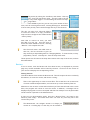
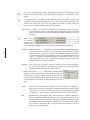
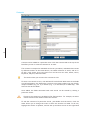
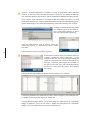
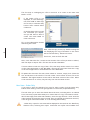
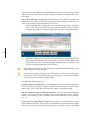
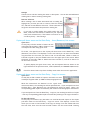
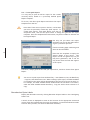
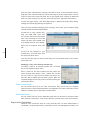
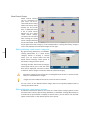
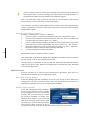
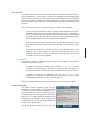
To print full pages only (and therefore not waste any labels, click Full Pages. This
reduces the list to multiples of a full page with no wasted labels. For example, if you
use 30 labels per page and there are 64 listed (with four wasted), clicking Full Pages
reduces it to 60.
To return to the previous search menu, click Find Again.
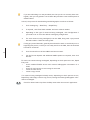
You can select and omit rows by first highlighting the appropriate records and then
clicking Select Rows or Omit Rows from the List pull-down menu, depending on what
is required.
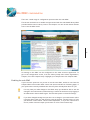
You can design your own barcode labels. This is explained in Advanced Labels Section.
To save time, contact the Access-It helpdesk and we will email you a copy of the
default barcode label which you can import into your Access-It system and change as
required.
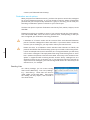
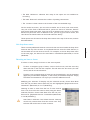
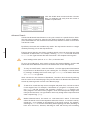
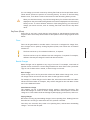
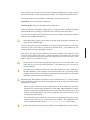
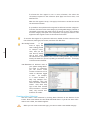
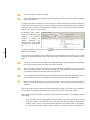
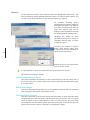
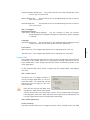
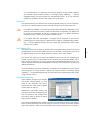
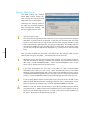
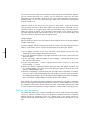
Once you have successfully printed your barcodes, a message will appear asking if
you need to print these again. Clicking “No” will automatically remove the tick in
the “Print Barcode” checkbox (within each copy record) so that these records are not
found the next time you search for barcodes to be printed.
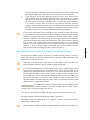
The message box described above will not appear if you choose “Print” via the
Preview screen.
Printing Spine Labels
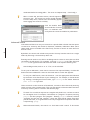
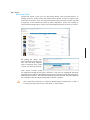
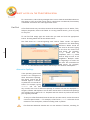
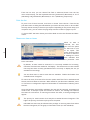
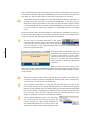
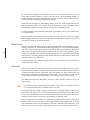
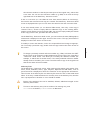
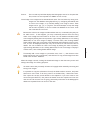
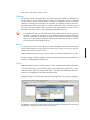
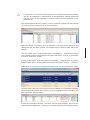
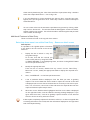
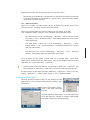
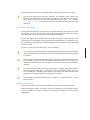
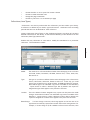
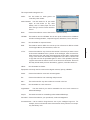
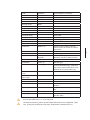
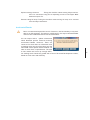
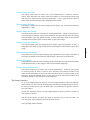
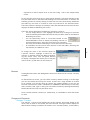
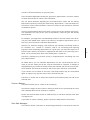
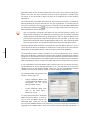
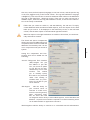
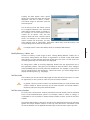
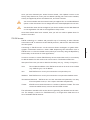
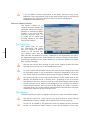
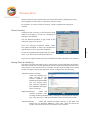
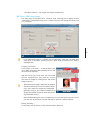
To print spine labels, click Print Spine Labels and choose the setup you require.
When printing spine labels, you have a choice of classification/call number formats,
as well as whether or not to include the title and/or the registration name for your
organisation.
75