1
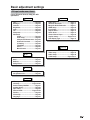
Useful adjustment settings
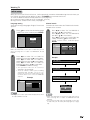
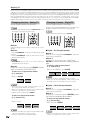
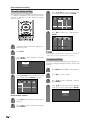
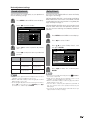
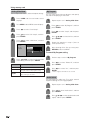
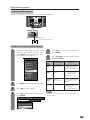
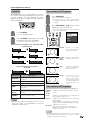
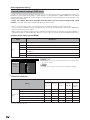
Input Select
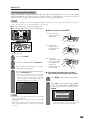
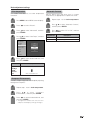
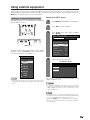
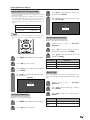
DVI input signal setting
1
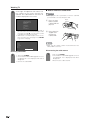
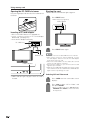
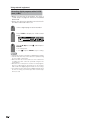
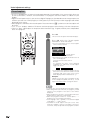
Press INPUT to select INPUT5.
INPUT SOURCE
TV
INPUT1
Display
INPUT2
INPUT3
INPUT4
INPUT button
INPUT5
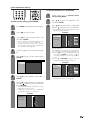
Selecting input source
i.LINK
Use this menu to select the input source.
CARD
1
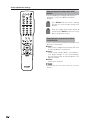
Press INPUT.
• A list of selectable sources appears.
2
2
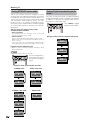
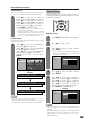
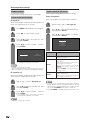
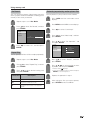
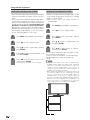
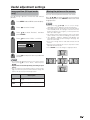
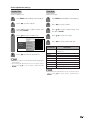
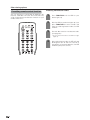
Press MENU and the MENU screen displays.
3
Press c/d to select “Option”.
4
Press a/b to select “Input Select”, and then
press ENTER.
Press INPUT again to select the input source.
• An image from the selected source
automatically displays.
• You can also select the input source by
pressing a/b.
• If the corresponding input is not plugged in,
you cannot change the input. Be sure to
connect the equipment beforehand.
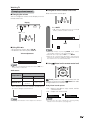
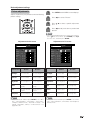
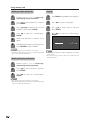
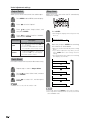
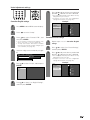
Selecting input signal type
MENU
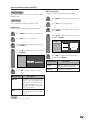
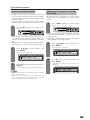
For setting the signal type of external equipment
connected to INPUT 1 and Input 2 terminals.
[Option ... Input Select]
Option
Audio Only
1
Input Select
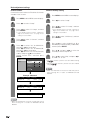
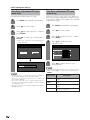
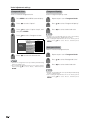
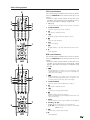
Press MENU and the MENU screen displays.
[ANALOG PC]
Output Select
2
Press c/d to select “Option”.
3
Press a/b to select “Input Select”, and then
press ENTER.
4
Press a/b to select a signal type you want
to set, and then press ENTER.
• If the selected signal type is incorrect, images
are not displayed or displayed without any
color.
NOTE
5
[Fixed]
Quick Shoot
[Off]
Center Channel Input
[Off]
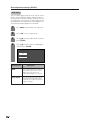
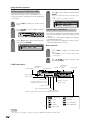
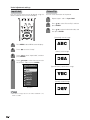
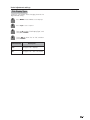
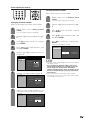
Press a/b to select the equipment
connected to INPUT 5 terminal, and then
press ENTER.
MENU
[Option ... Input Select]
DIGITAL PC
ANALOG PC
DIGITAL AV
ANALOG AV
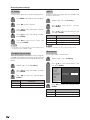
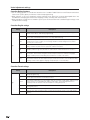
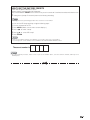
• If you set INPUT1 and INPUT2 to Auto, the TV will
automatically select the input signal.
• Check the operation manual of the external equipment
for the signal type.
• Setting INPUT 1 and INPUT 2 signal selection to “Auto”
when other equipment is connected will result in the
following connectivity priority.
INPUT 1 and INPUT 2
1. COMPONENT VIDEO
2. VIDEO
67