1
Users guide
1
Declaration.................................................................................................................................................... 3
Disclaimer....................................................................................................................................................... 3
Connector.......................................................................................................................................................4
Boot state ......................................................................................................................................................4
Device connection Instruction.......................................................................................................... 5
Main Screen Introduction...................................................................................................................... 6
Settings...................................................................................................................................................... 7-9
Web Browsing............................................................................................................................................. 10
Use Android™ Smartphone/Tablet as control system.......................................................... 11
Question and Answer............................................................................................................................. 12
Specification.............................................................................................................................................. 13
Principal office and distribution...................................................................................................14
Dealer inquiries........................................................................................................................................14
Technical support....................................................................................................................................14
Other Informations.................................................................................................................................14
2
Declaration
The user manual includes all the information of safe and correct operation instruction. To
avoid accident and product damaged, please make sure go through all the content carefully
before using the product.
Please keep the product away from high temperature, humid and dusty environment.
Do not drop or crash the product.
Do not cut off the device when it is formatting, or upgrading, otherwise it will cause operation system error.
Do not dismantle the device. Do not clean it by alcohol, thinner and Benzene.
We keep the right to upgrade and modify the product.
Disclaimer
We only take the responsibility to provide the warranty and after service. The users have to
take care of their data in the device by themselves. We do not responsible for any data or
related lost. The product is not water-proof. All the pictures in the instruction are just for
reference.
3
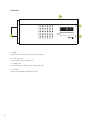
Connector
1 = HDMI
High Definition Multimedia Interface Output
2 = USB-2.0 Host
Connect with other USB device
3 = USB-Power
Connect with TV USB port for charge the unit.
4 = T-Flash
Support expanded 2GB-32GB TF card
4
DC
1
3
HOST
4
2
Device connection Instruction
Take out the device insert into your TV HDMI port (if there is no enough space around HDMI
interface for MK802III, please use HDMI adapter connect), setup the TV data receive mode to
HDMI port (Refer to TV set user manual).
Power supply connection: take out Micro USB cable, connect it with the players Micro USB2
port, then connect USB2 with TVs USB port (notice: if there is no USB2.0 port in your TV or
you need connect external HDD box, please connect power adapter directly)
This product suggest using 2.4G wireless keyboard or mouse. Plug 2.4G receiver on USB Host
connector. Or plug on USB OTG port by port converter. If only mouse plugged, the device will
provide soft keyboard in operation system. If the device detected the physical keyboard,
the soft keyboard will be hidden by OS automatically.
Mouse left button for ok, right button for return, rolling for page up and page down, Hold
left button to pull icon or copy & paste file. Hold middle button for Properties.
Boot state
After connect with power adapter for about 10 seconds, the boot screen would appear.
Then access to Rikomagic boot logo, for about 30 seconds, device would access to main
screen.
5
Main Screen Introduction
2
1
9
8
7
6
5
4
3
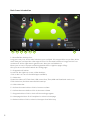
1 = Move/Delete desktop icon
Long-press any icon in the main interface, you could put it in any position as you like, at the
same time you could put the other apps shortcut to the main interface. Long press the icon
and move it to the right above × and loosen, then you could delete it.
Move your cursor to any space and drag towards left or right for page rolling.
Also you can use the mouse wheel for rolling page.
2 = Program tools button
Located in the right top corner of the desktop,
click on the icon can see installed apps software;
3 = Status bar
Shows the status of T-Flash Card, USB connection, Time, Wifi and Download…and so on.
Click status bar, the hide menu would bound up.
4 = Hide status bar
5 = Volume increase button: click to increase volume
6 = Volume decrease button: click to decrease volume
7 = Program button: click to check all the running program
8 = Homepage button: click it anytime to return to homepage
9 = Return button: click to return to the upper level directory
6
Settings
Wi-Fi
When opened WIFI Player would search available wireless router signals within 20
meters, user just choose a router and input correct password then could browse
internet; if the router without password, player would connect it directly.
Ethernet Setting
If there is no wireless and have to use cable to access internet. But first, you
should buy a USB2.0 LAN Adapter and plug it on USB Host or OTG ports.
We recommend the rikomagic RE800 Ethernet Adapter.
Notice:
The USB2.0 LAN Adapter supported is limited, please reference related type.
Connect RJ45 LAN Cable, click Setting b More b Ethernet b tick Use Ethernet
PPPOE Setting
If your family or office network need dial-up, then click PPPOE Settings and
input account and password.
Connect RJ45 LAN cable, click Setting b More b PPPOE Settings b input account
and password.
USB
This function user could exchange data between player and computer.
Equipment connection: Use Micro USB to USB connect computer and Player, then
connect the player and TV with HDMI cable.
Settings:
After device access to the main screen click Settings b USB b Connect to PC
press confirm. After the device go to USB mode, press Turn on USB storage. Now
your computer could find the device, after 5 seconds you could operate freely.
Sound
This is for Sound settings
Volume: Click to setup volume level for music, video and games or other media
Touch sounds: Click to open or close Touch sounds
Screen lock sound: Click to open or close screen lock sound
Display
Font size: Click to setup system font size according to their preference
Screen
This is for Screen settings:
Screen Scale: Used to adjust the part of the game screen size
Output Interface: Default HDMI
HDMI mode: User could set appropriate output resolution according to their
television
7
Storage
In this option, user could view local storage space and external storage space,
besides, user could uninstall or format storage equipment.
Notice: System divided the whole storage into seven area, only two areas visible, the other five areas are taken up by Android system not visible. All the
free space are the two visible areas(0.98GB INTERNAL STORAGE + 1.60GB NAND
FLASH=2.58GB)
Apps
In this option, user could view installed and running apps, at same time could
check DDR parameters.
Security
User can set password according to their needs
Language & input
User can set the language for system menus according to their Country or preference (60 languages supported). System default support Chinese and English,
user need manual installing other input methods. User could set keyboard and
mouse cursor speed and simulated mouse step length at here.
Backup & reset
Backup: when you have very important files or apps, you’d better choose backup
in case files lost.
Reset: when choose this option, and confirm, system will erase user’s settings
and all the apps missing, and apply default configuration immediately (Not suggest)
Date & time
Because the machine don’t support built-in battery, so manual set date and time
can’t be saved, user can use automatic date & time, so when the device connected with internet, date and time would update automatically
Developer options
USB debugging: when connected with PC exchange data need open this option
About device
This option show current system information display
8
Browse/Copy Files
Open Explorer on the desktop
Internal Flash: Device internal storage space
SD Card: When insert TF card, fronts brighten
USB: When plug-in USB device (HDD, U-disk), fronts brighten
Network Places: In the same LAN, could access to other computer
File Copy
In the Explorer long-press a file or folder will pop-up a menu, including: Copy, Delete, Move,
Paste, Rename options, if not execute operation, could directly click cancel.
Install/Uninstall Apps
MK802III support many commonly used third-party apps. You could install or uninstall
apps freely, there are two methods available install Apps
Online installation
User could login built-in Google Play store download Apps (User need have an Google
Mail account), user also could login Android market download Apps or other market.
After download system would prompt you install the Apps.
Local installation
User also could download Apps from computer, then copy to U disk or TF card, insert
the U disk or TF card to your device, then install from APKInstall or access to Explore
find out the Apps then install.
Uninstall Apps
Click Settings b Apps, click an Apps you want to Uninstall, it would pop up a Uninstall
window, then click Uninstall. If you don’t want to uninstall just exit.
Airplay/DLNA
Airplay:
By Airplay function, you can take iPhone, iPad music, video and images through wireless transmission to the MK802 III equipment, and finally appear in the big screen.
DLNA:
DLNA can through the specific applications let you share music, video and images with
smart cell phones and tablet PC.
There are many Apps could realize DLNA function, such as Air Play Free, Air Play DMR,
Google TV Remote, Media Remote, iMedia Share Lite, SoftMedia Player Tridl and so on.
Local audio & video playback
User can through file manager browse external TF card, USB flash drive and HDD box
and playback the inside music, video, picture and files.
Use soft keyboard
The equipment support if only connected mouse, it would appear soft keyboard, if the
equipment detected you have inserted into physical keyboard, the soft keyboard will
be hidden.
9
Web Browsing
1
3
4
2
5
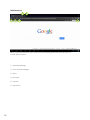
When connected Internet, you could use the following android built-in browser, or
install other browser
1 = add new webpage
2 = lose opened webpage
3 = back
4 = forward
5 = refresh
6 = Favorites
10
6
Use Android™ Smartphone/Tablet to control rikomagic MK802 III (without Wi-Fi)
1. Access Setting b more b portable hotspot, select portable wifi hotspot
2. Set up wifi hotspot b system will create a password automatically,
select show password to find the password and write down
3. Back to your smart phone, find Setting b wifi b find android AP ,
input password and connected.
4. Install the APK, which you can get from our Database or in the Board
(APK name is “RKRemoteControl V1.1.0.apk”) into your Smartphone or
Tablet first, then access this apk to find “rikomagic”, then you can control
the unit by Android™ Smartphone or Tablet
Use Android™ Smartphone/Tablet to control rikomagic MK802 III (with Wi-Fi)
1. Firstly, your Android™ Smartphone/Tablet and rikomagic MK802 III must be
in the same network.
2. Open eHomeMediaCenter in rikomagic MK802 III, then click Settings
to modify device name for better Recognition. For Exaple: rikomagic
3. Install the APK, which you can get from our Database or in the Board
(APK name is “RKRemoteControl V1.1.0.apk”) into your Smartphone or
Tablet first
4. Access this apk to find rikomagic, then you can control the unit by
Android™ Smartphone or Tablet
Note:
As your device is equipped with a G-Sensor, you can control the Motion games by
movements with the Smartphone or Tablet?
11
Question & Answer
Screen flicker or unstable working
please check if the HDMI cable has been connected tightly.
Cannot start device
please download FW file from Rikomagic official website:
www.rikomagic.de / www.rikomagic-forum.de to refresh the device FW.
Make sure all the important data has been backup before process it.
If the issue still cannot be solved, please contact the distributor which you bought from.
Keep restarting system automatically
please check if the device get enough power supply. Sometimes, external HDD cause power
shortage. Please plug additional power supply for external HDD or other external devices.
Cannot find file in SD card or open drive
Please check all the connection of the device and make sure you have tick of SD and USB
Host in “Setting”
12
Specifications
CPU
RK3066 Dual Core 1,6GHz Cortex-A0
GPU
Quad- Core 2D/ 3D/ OpenGL ES2.0(AMD Z430)/ OpenVG1.1
OS
Android 4.1
Main Frequency
Cortex-A9 up to 1.6GHZ
RAM
1024 MB DDR3 RAM
Memory4GB/8GB
13
Expand Micro SD
T-Flash (Maximum support 32GB)
Ports
HDMI(male), Micro SD slot, USB host, USB power port
Video Format
play various formats
Music
play various formats
Picture
play various formats
Picture format
max. 8000 x 8000
WiFi WiFi 802.11 b/g/n – WAPI (Ralink 8188)
Flash
Supports flash 11.1
Languages
60 languages supported
Unit Size
90 x 40 x 13 mm
Principal office and distribution
Satkontor GmbH
Hans-Böckler-Straße 55
58638 Iserlohn
Germany
Dealer inquiries
E-Mail: [email protected]
Technical support
E-Mail: [email protected]
Other informations
Webpage www.rikomagic.de
Support-Forumwww.rikomagic-forum.de
Software-Supportwww.rikomagic-forum.de
Online shop
www.rikomagic-shop.de
© Satkontor GmbH 2012
14
all rights reserved, rikomagic and MK802 are registered trademark by Satkontor GmbH